If you have forgotten your current Six-Digit PIN, you can reset it by verifying your identity using your registered email address or mobile number.
Step 1: Access the Account Menu
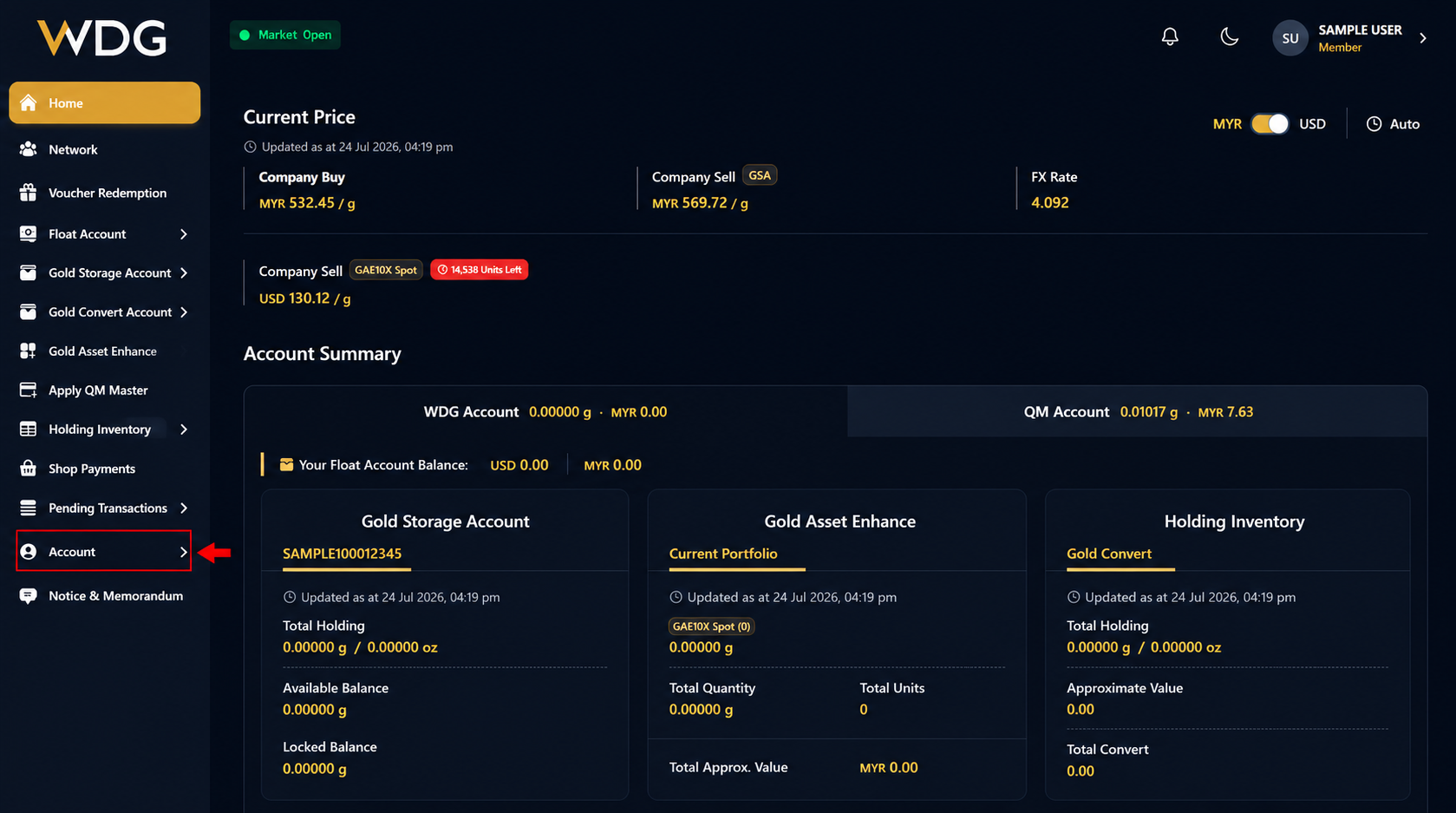
After logging in to your WDG account, locate the navigation menu on the left side of the Dashboard.
Click or tap Account to expand the menu options.
Step 2: Select Change Six-Digit PIN
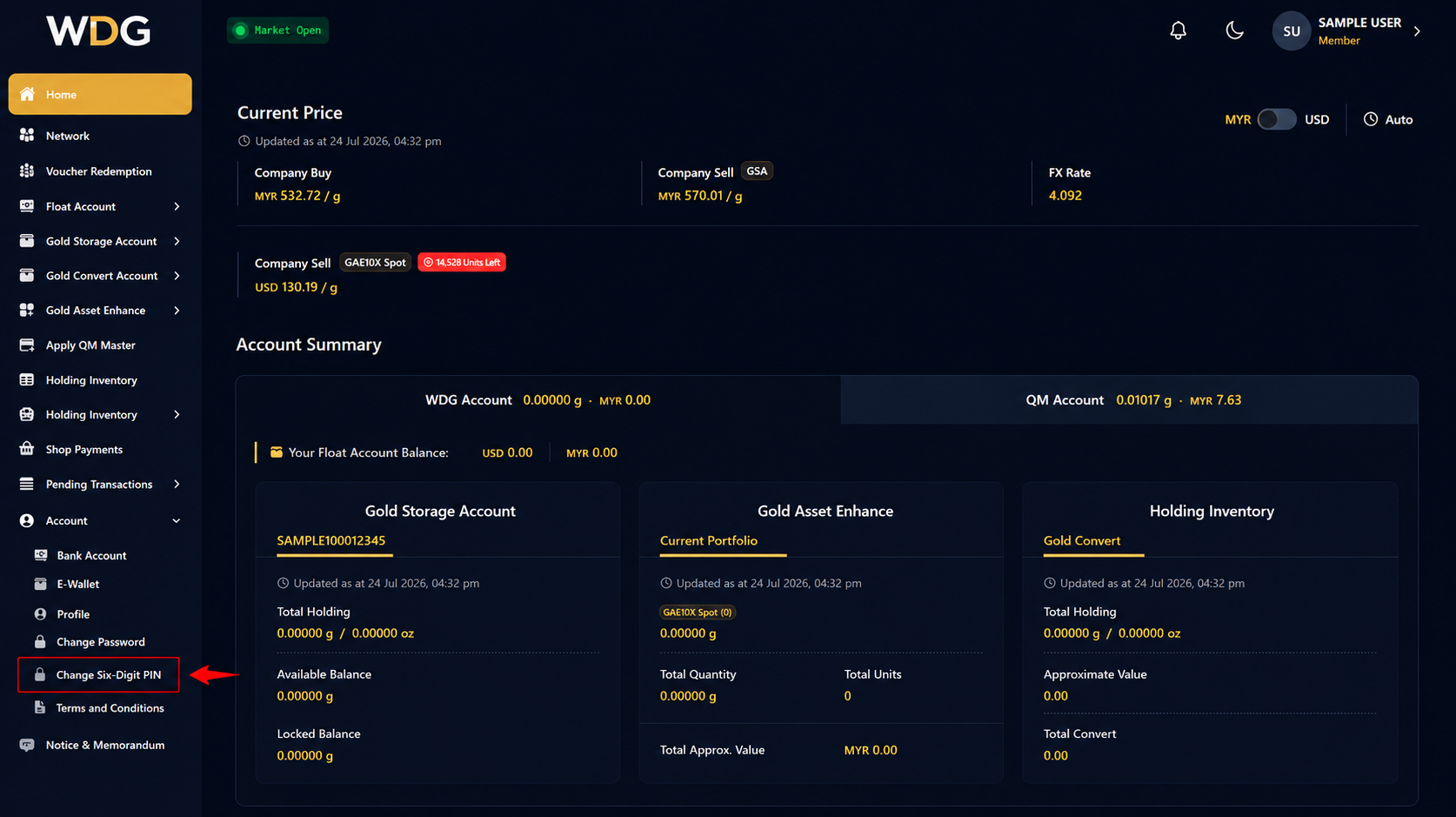
From the Account submenu, click or tap Change Six-Digit PIN.
Step 3: Select Reset
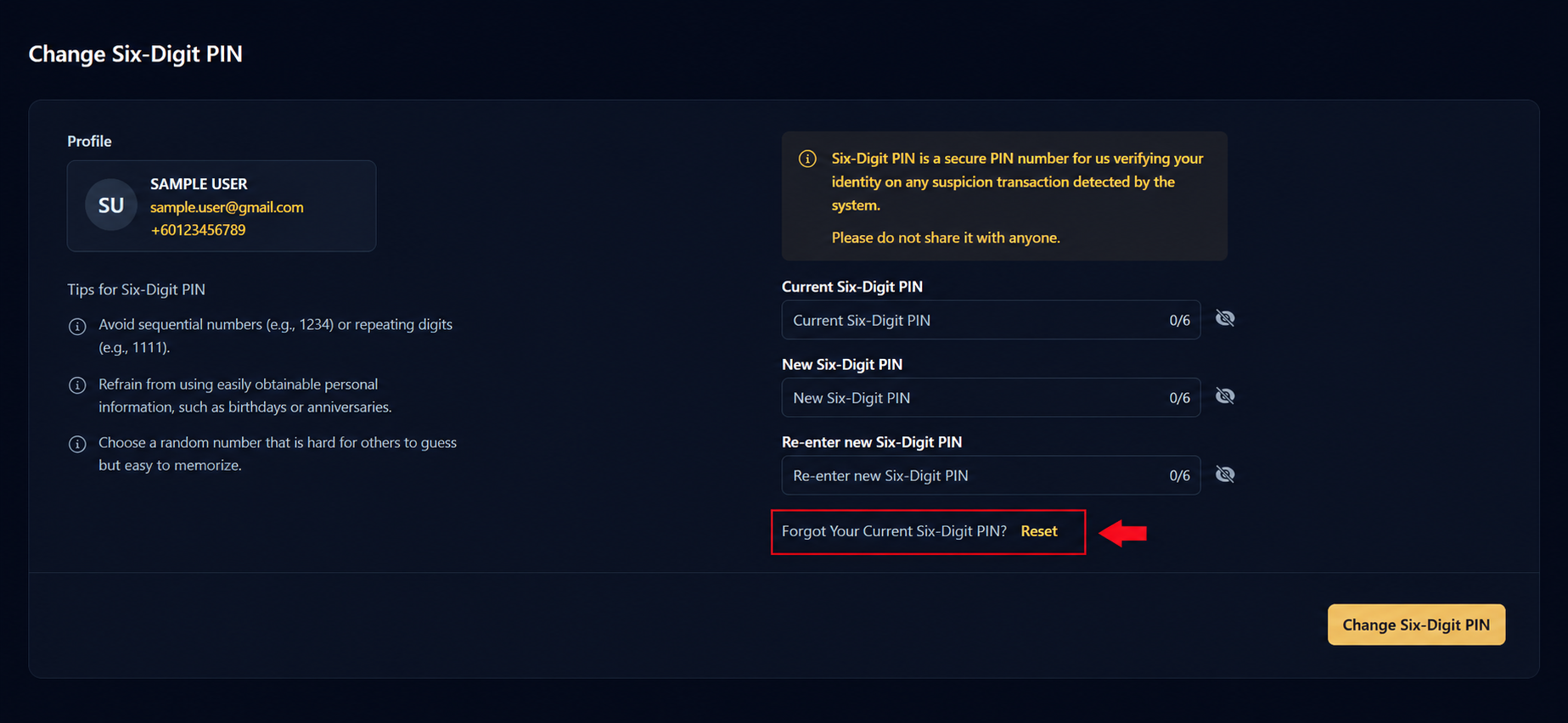
On the Change Six-Digit PIN page, locate the Forgot Your Current Six-Digit PIN? Reset option beneath the Re-enter New Six-Digit PIN field.
Click or tap Reset.
Step 4: Request an Authentication Code
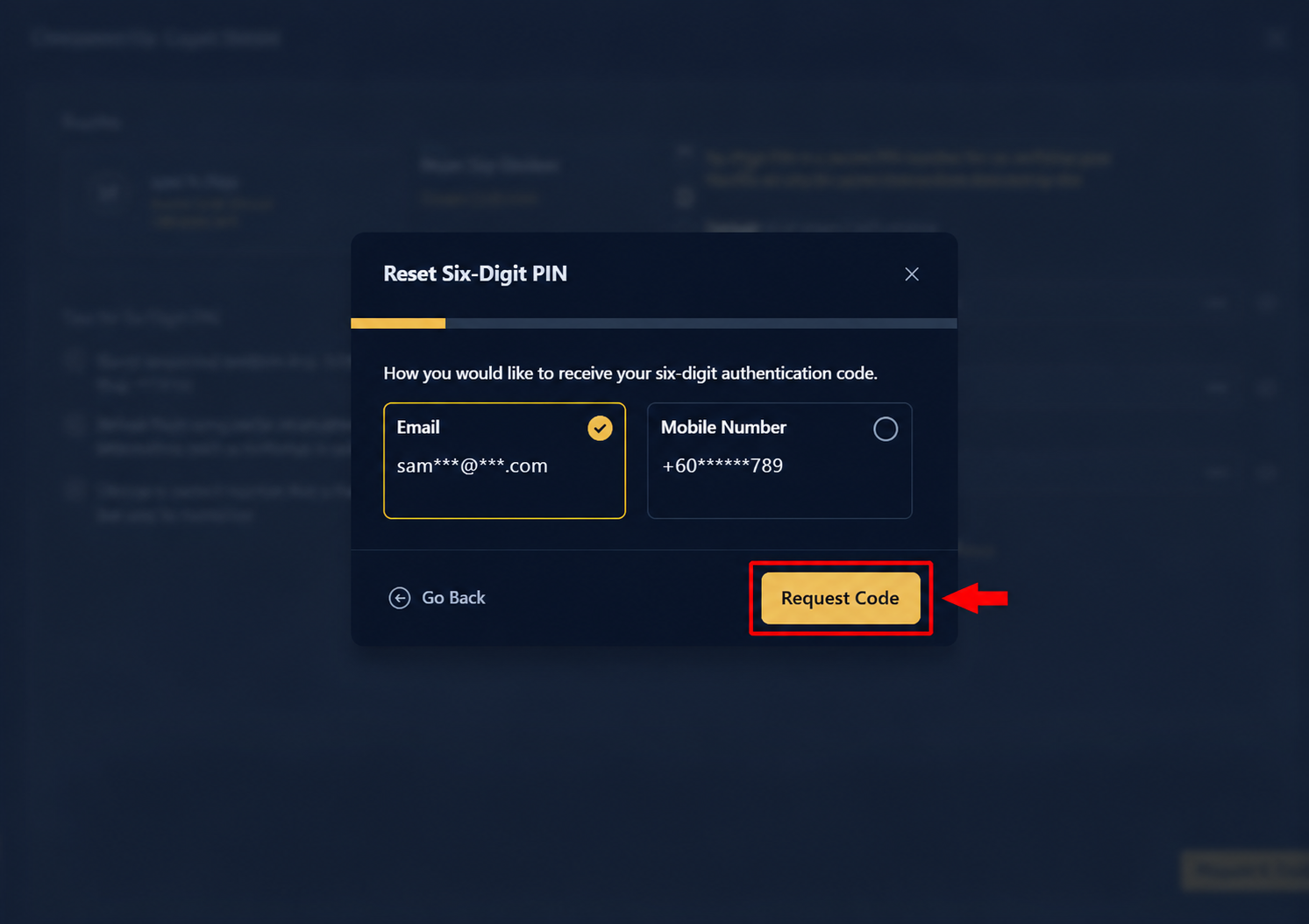
Choose how you would like to receive your authentication code by selecting either:
- Registered Email Address, or
- Registered Mobile Number
After making your selection, click or tap Request Code.
Step 5: Verify the Authentication Code
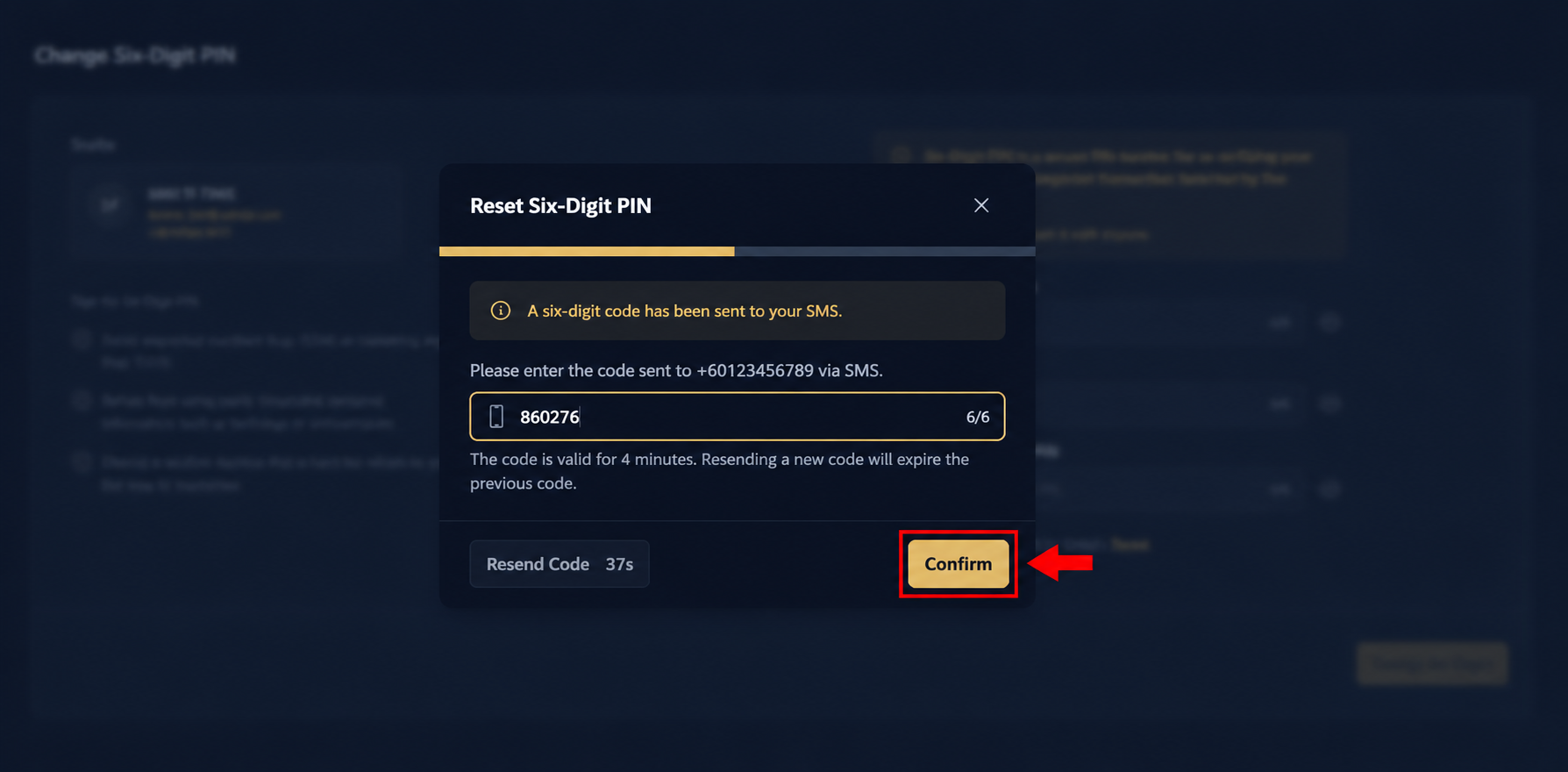
Enter the six-digit authentication code that you received.
Click or tap Confirm.
Step 6: Create a New Six-Digit PIN
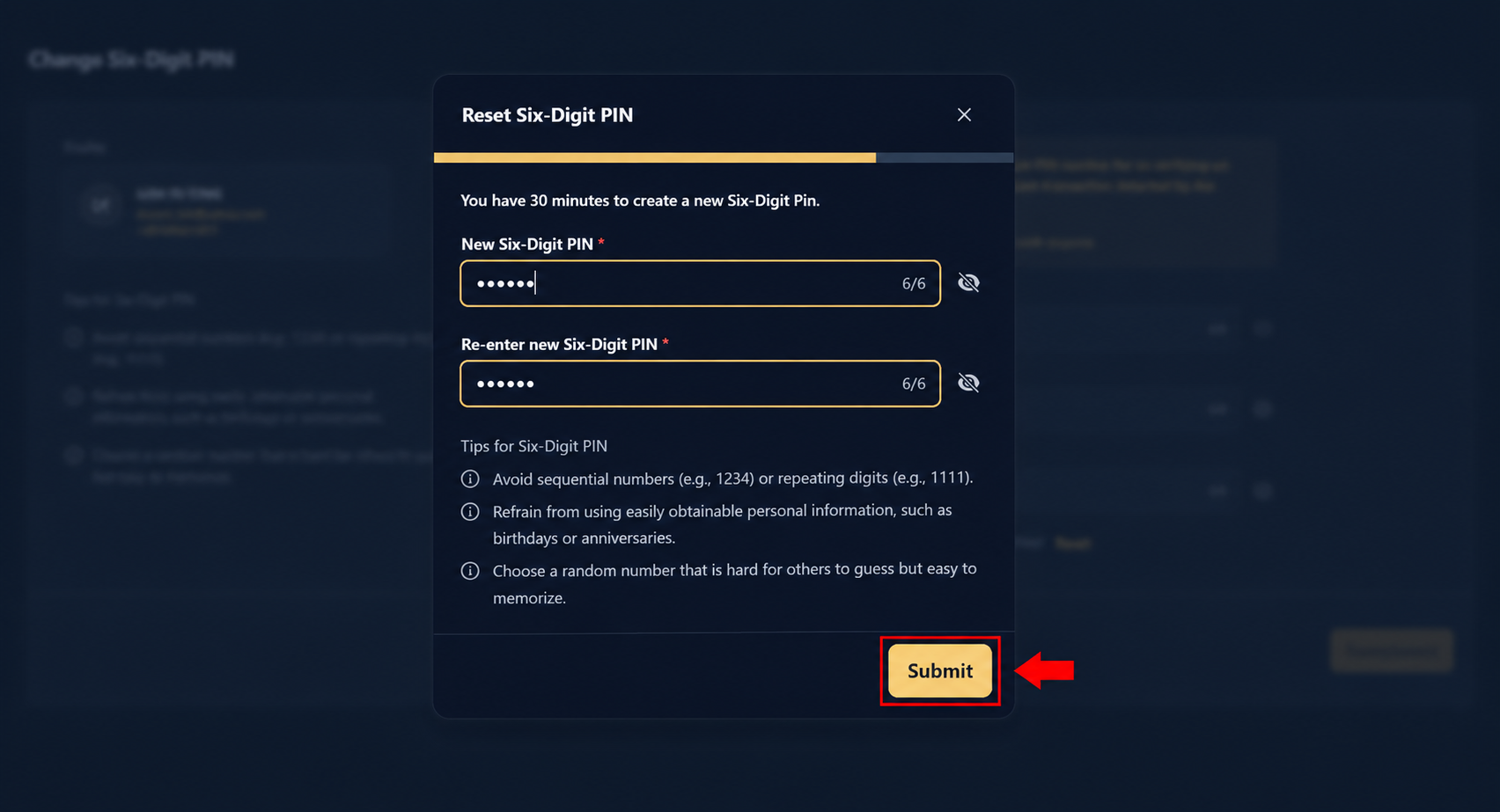
Enter your new Six-Digit PIN in the following fields:
- New Six-Digit PIN
- Re-enter New Six-Digit PIN
After confirming both entries match, click or tap Submit.
Note: Choose a PIN that is difficult for others to guess. Avoid sequential numbers (e.g., 123456), repeated digits (e.g., 111111), or personal information such as birthdays.
Step 7: Six-Digit PIN Reset Successful
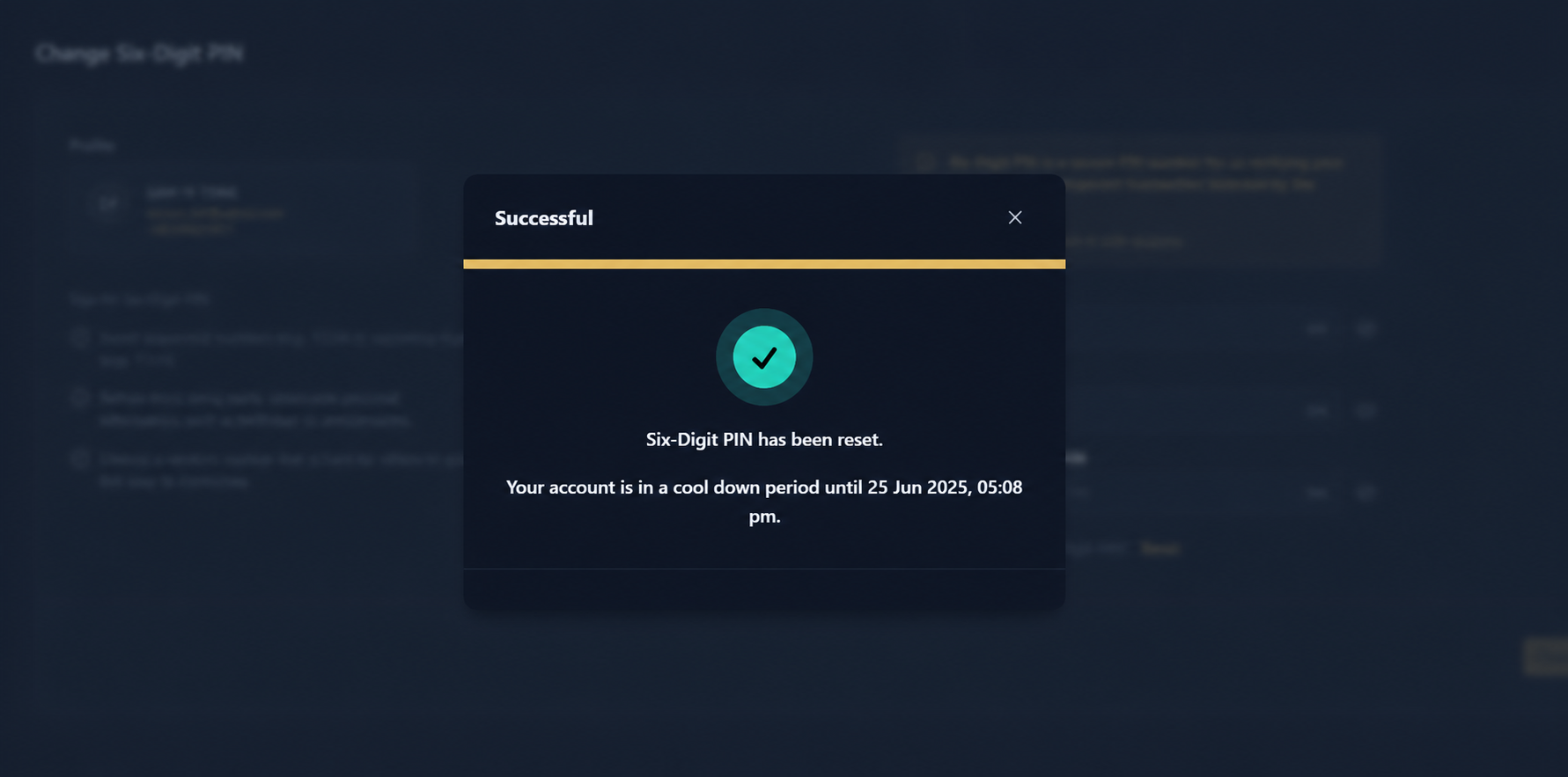
Once your request has been processed successfully, a confirmation message will appear indicating that your Six-Digit PIN has been reset successfully.
Important: For security purposes, your account may be placed under a temporary cool-down period after the PIN reset. During this period, certain transactions may be restricted until the specified time shown in the confirmation message.
Was this article helpful?
That’s Great!
Thank you for your feedback
Sorry! We couldn't be helpful
Thank you for your feedback
Feedback sent
We appreciate your effort and will try to fix the article