If you registered your account using your mobile number, you can bind an email address to your account. After binding your email address, you can use it to log in to your account and receive verification codes and important account notifications.
Step 1: Access the Account Menu
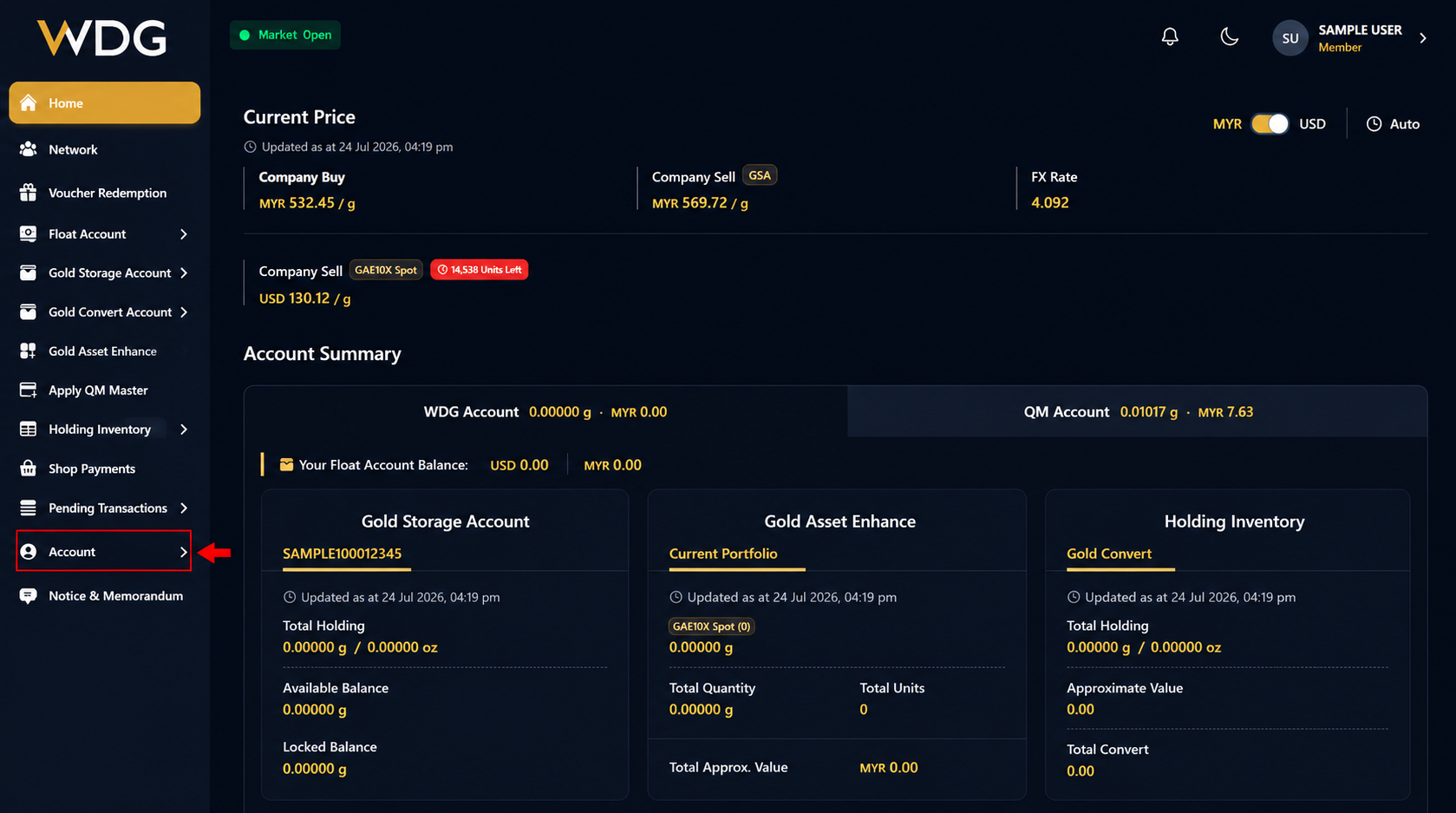
Click or tap Account from the left navigation menu.
Step 2: Select Profile
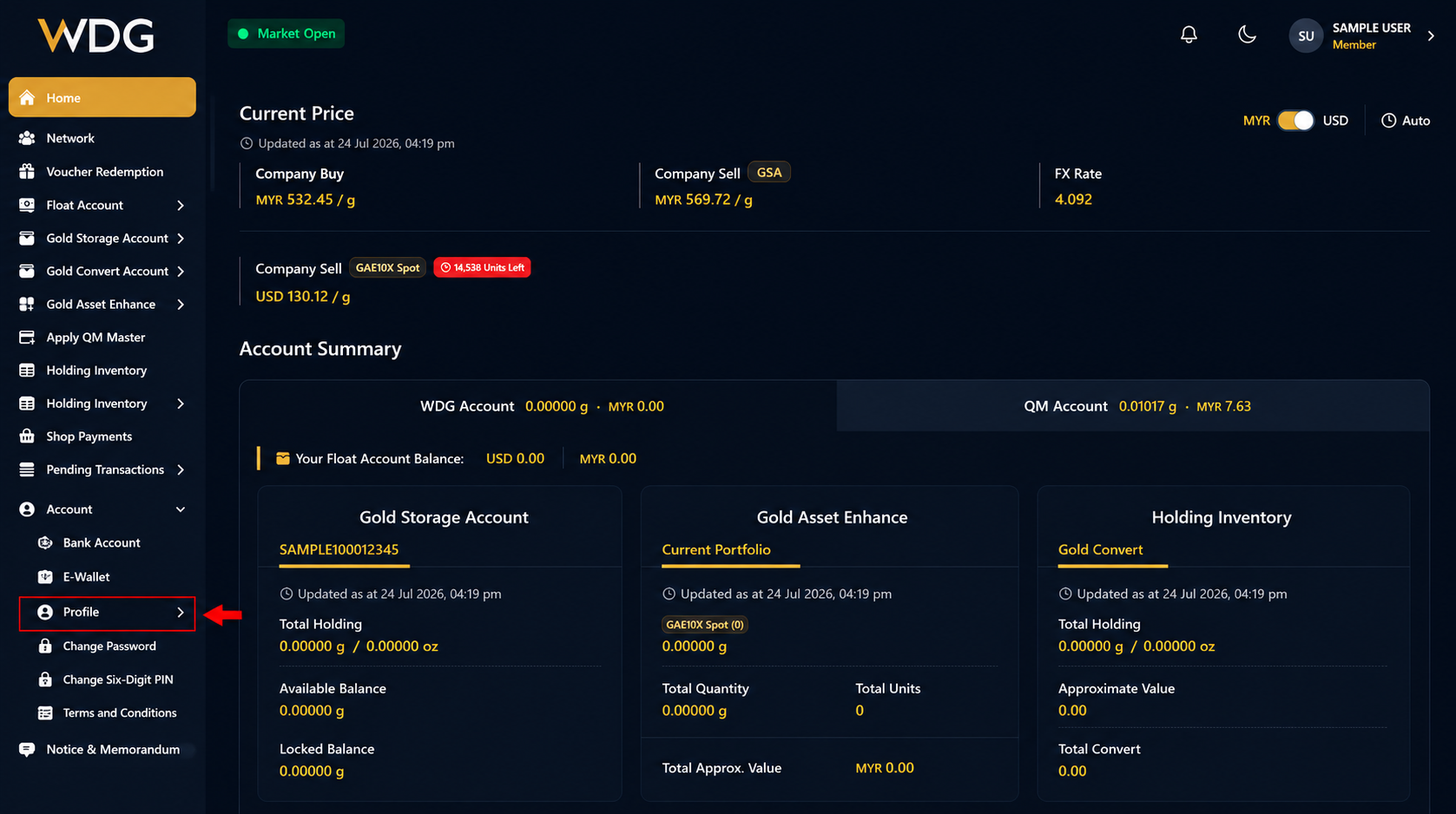
From the Account submenu, click or tap Profile.
Step 3: Scroll to Contact Information
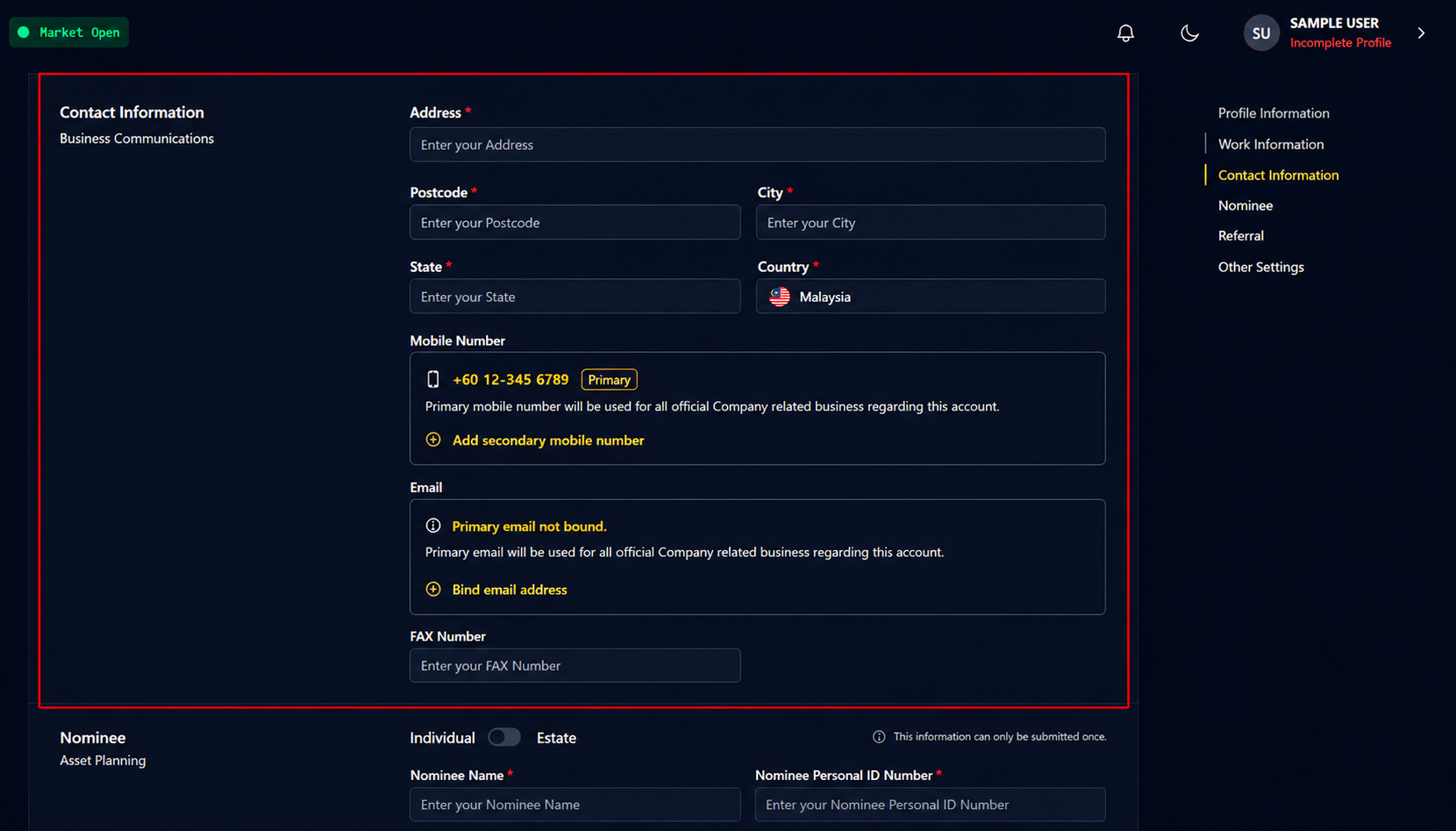
On the Profile page, scroll down to the Contact Information section.
Step 4: Select "Bind Email Address"
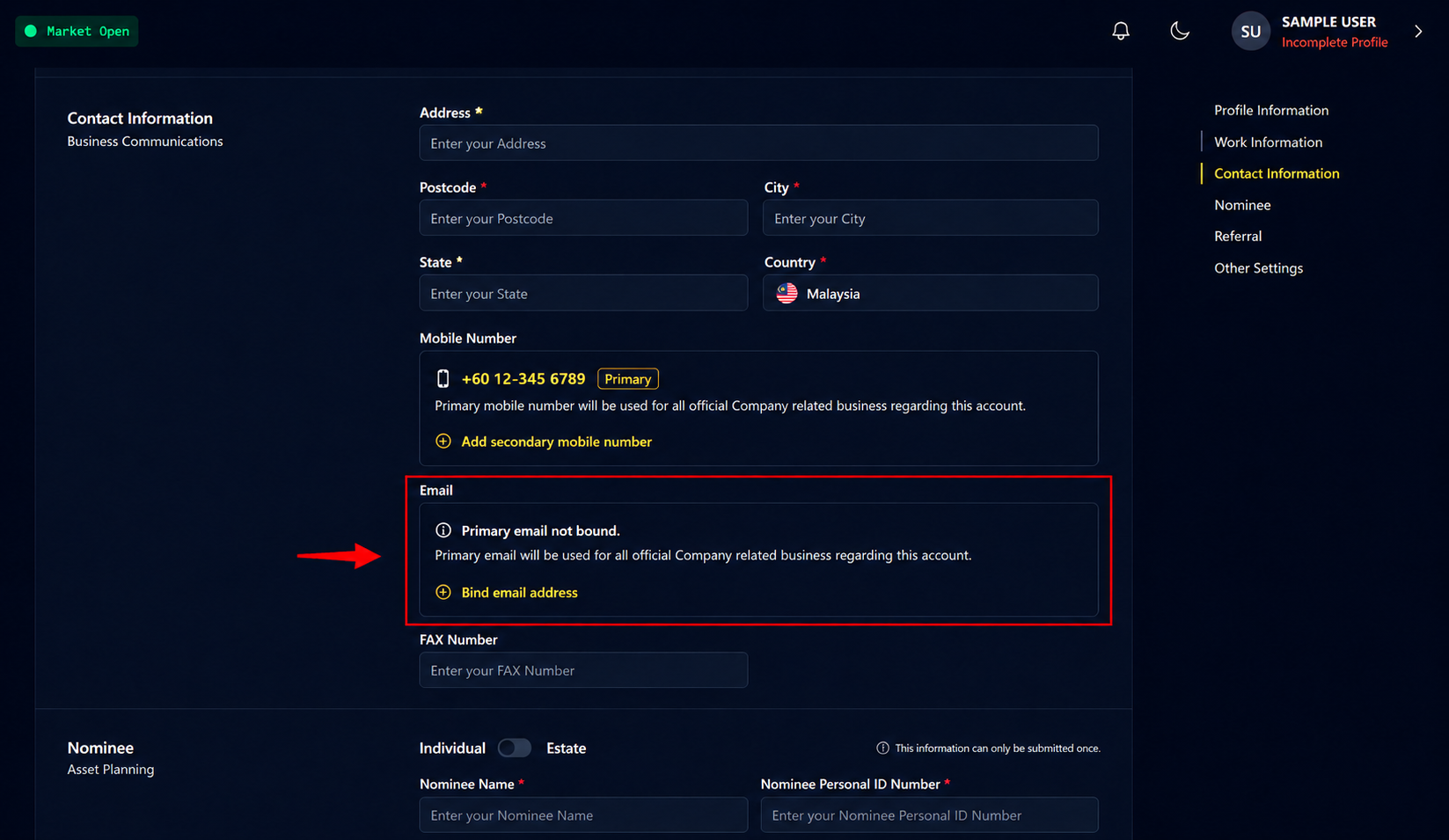
Under the Email section, click or tap Bind Email Address.
Step 5: Enter Your Email Address
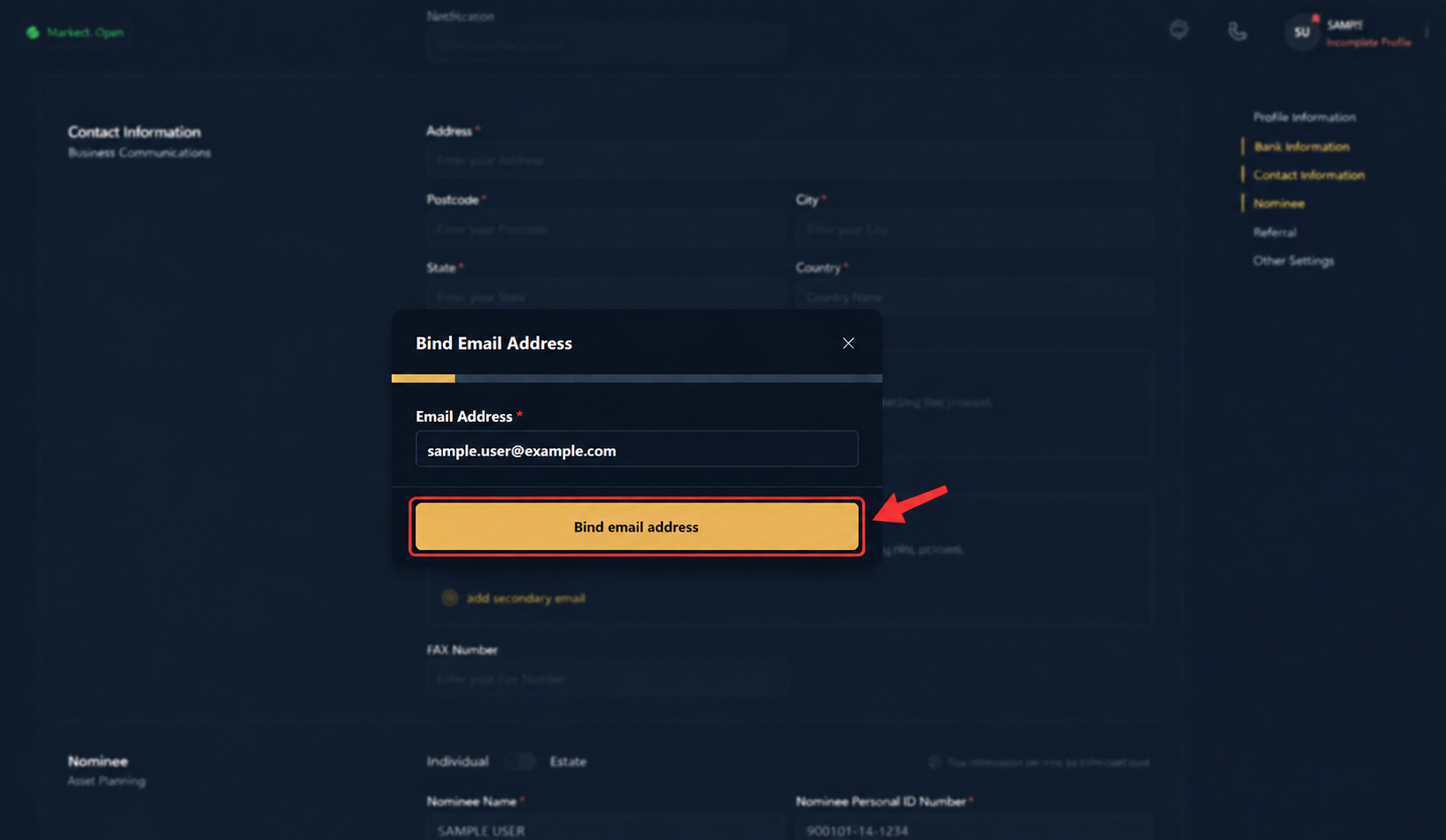
Enter your email address, then click or tap Bind Email Address.
Step 6: Enter The Verification Code
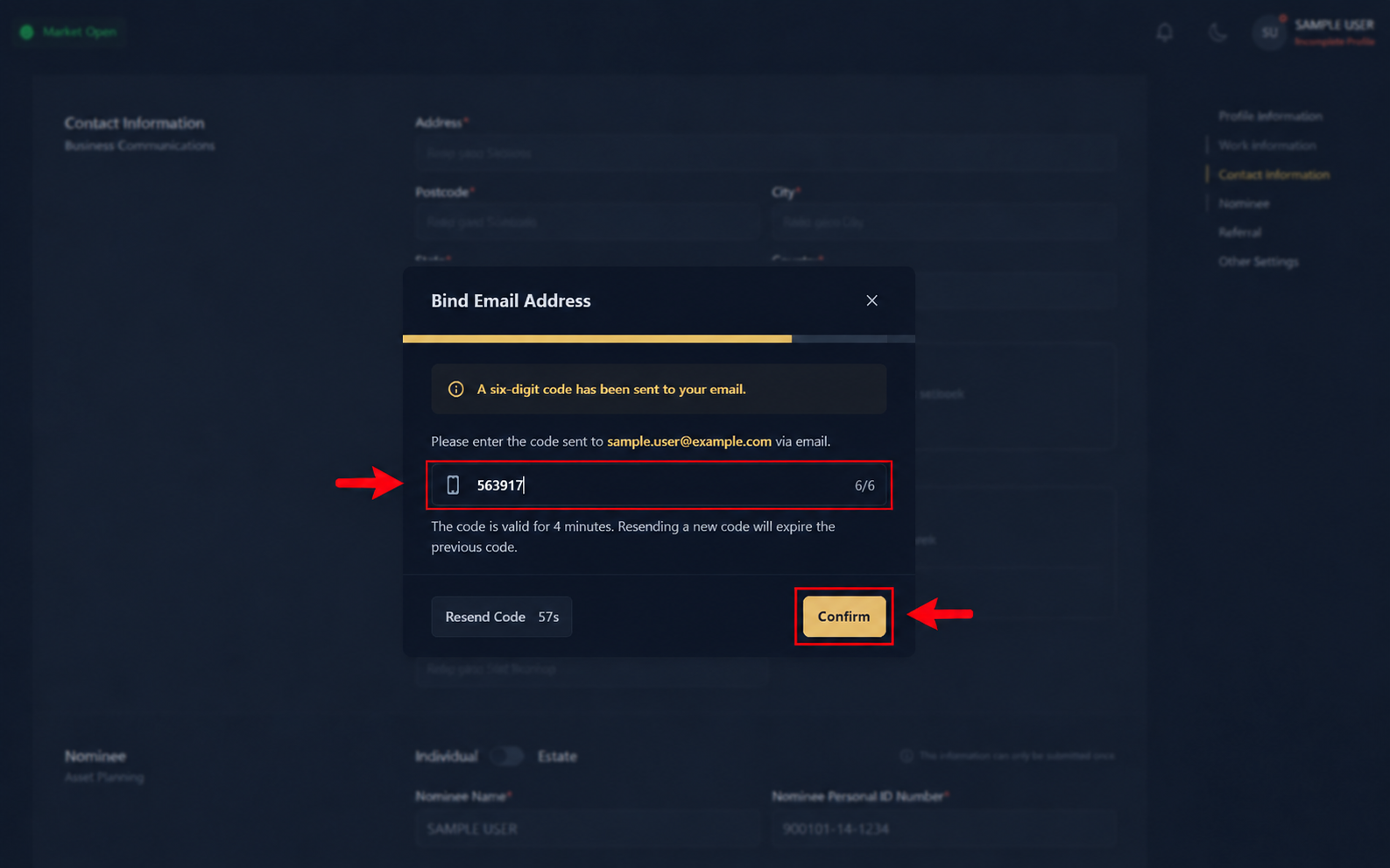
A six-digit verification code will be sent to your email.
Enter the code and click or tap Confirm.
Step 7: Email Successfully Bound
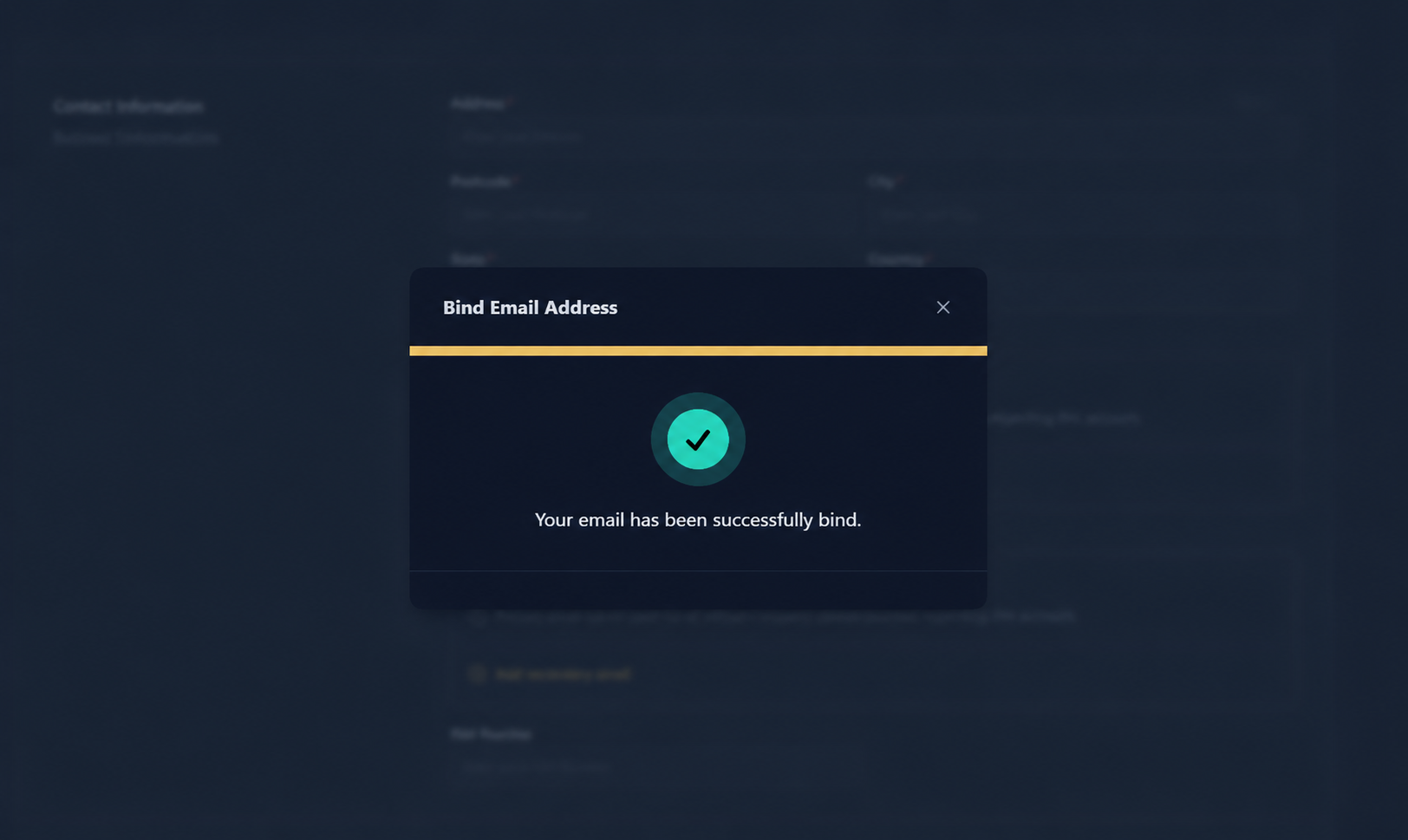
Once the verification is successful, your email address will be linked to your account. You can now use your email address to log in and receive verification codes and account-related notifications.
Was this article helpful?
That’s Great!
Thank you for your feedback
Sorry! We couldn't be helpful
Thank you for your feedback
Feedback sent
We appreciate your effort and will try to fix the article