Keeping your profile complete ensures your account information is up to date, helps us comply with regulatory requirements, and allows you to access all available WDG services.
Step 1: Access the Account Menu
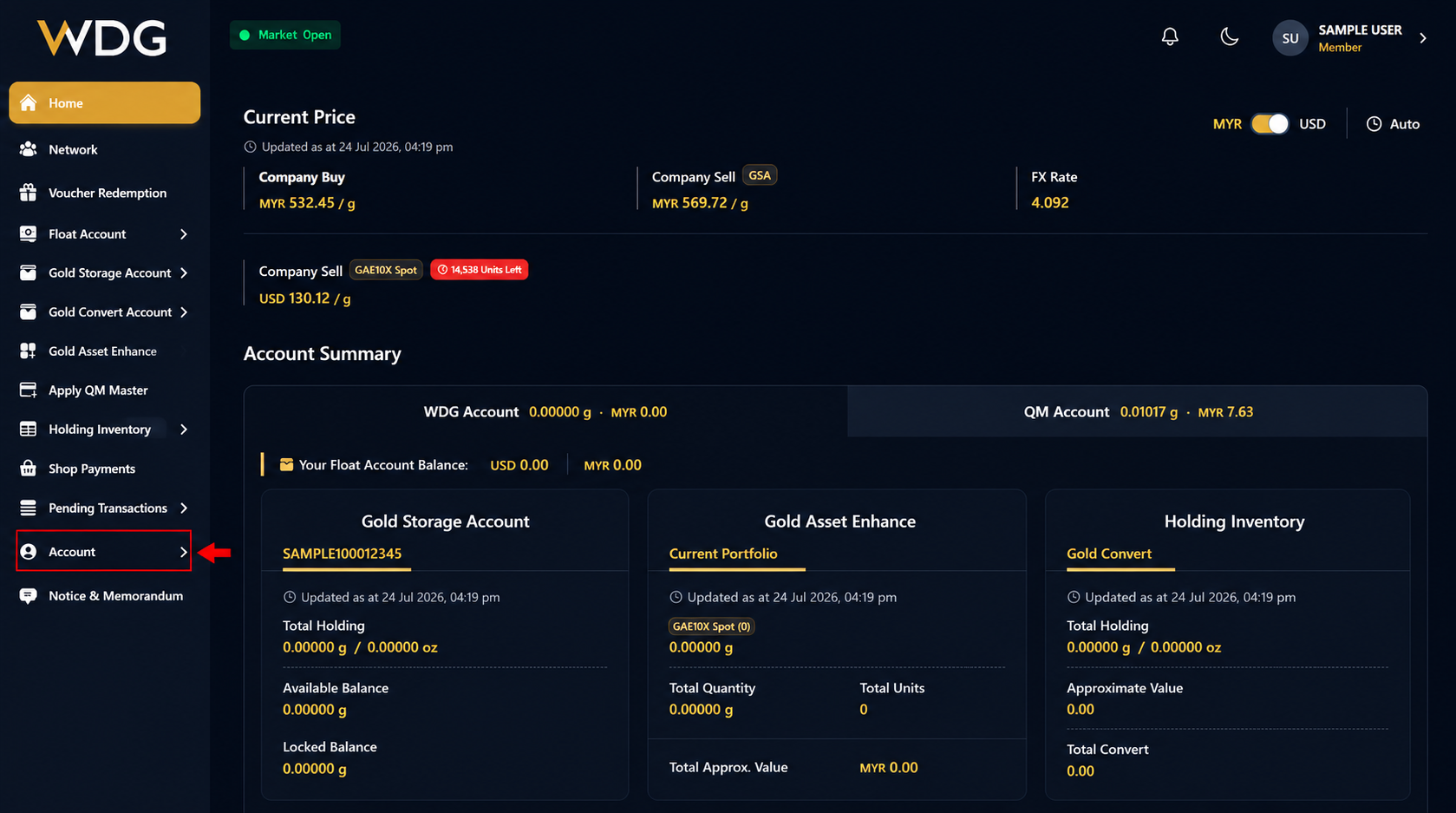
After logging in to your WDG account, locate the navigation menu on the left side of the Dashboard.
Click or tap Account to expand the menu options.
Step 2: Select Profile
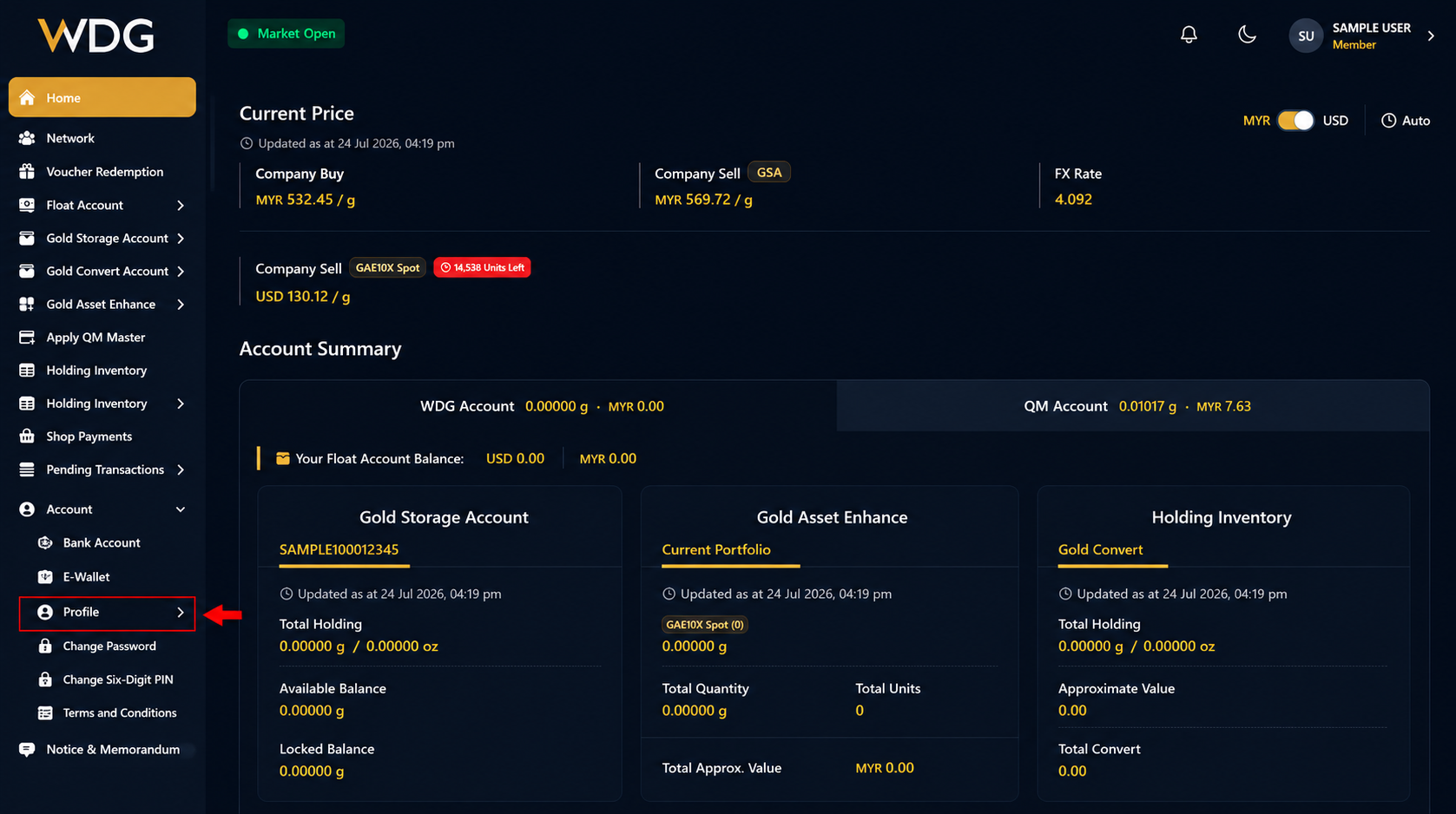
From the account menu, select Profile.
The Profile page displays your personal information and KYC status.
Step 3: Navigate Through Each Profile Section
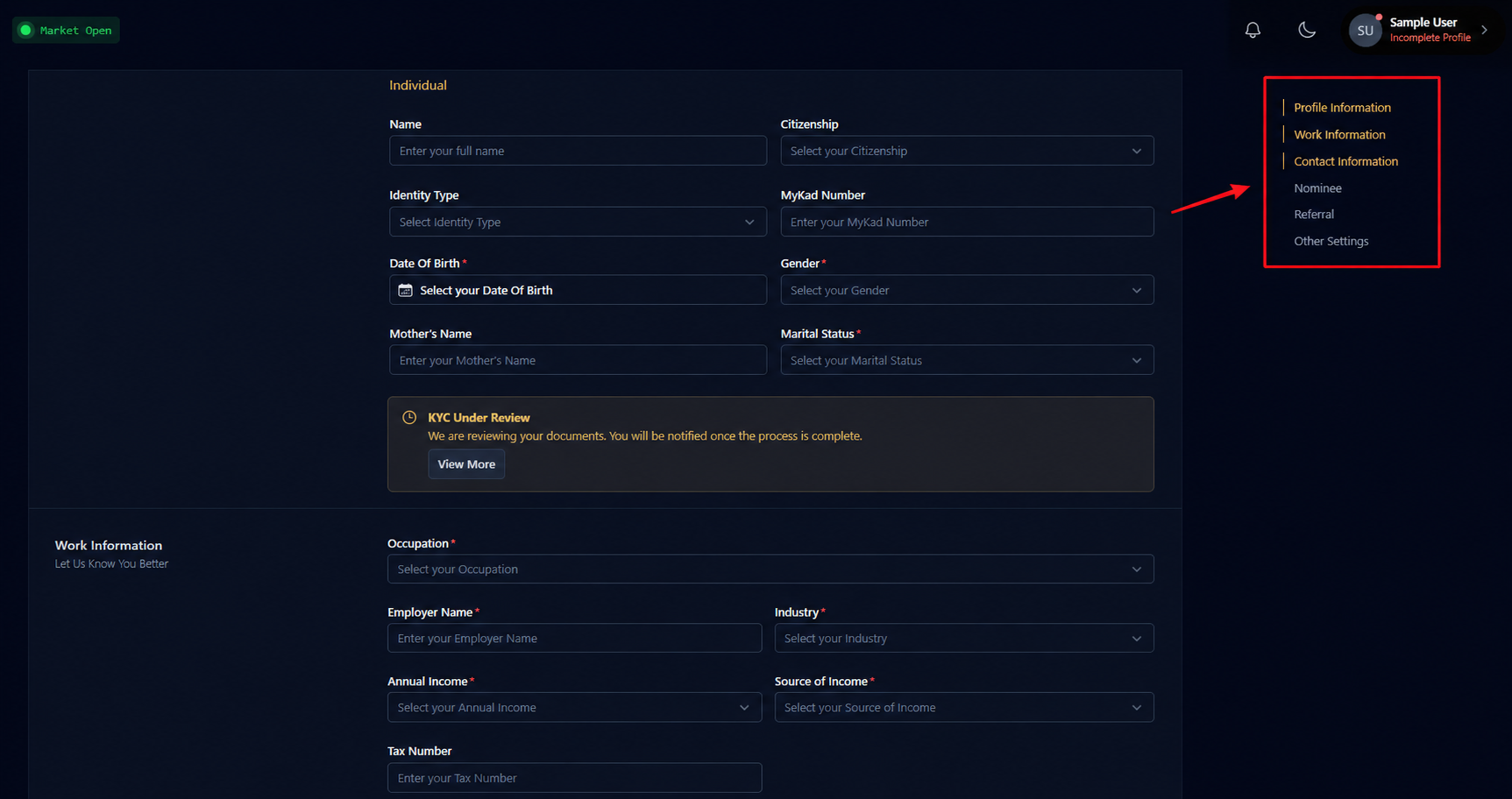
Your profile is divided into several sections. You can quickly jump to each section by selecting it from the menu on the right side of the page.
The sections include:
- Profile Information
- Work Information
- Contact Information
- Nominee
Step 4: Complete All Required Information
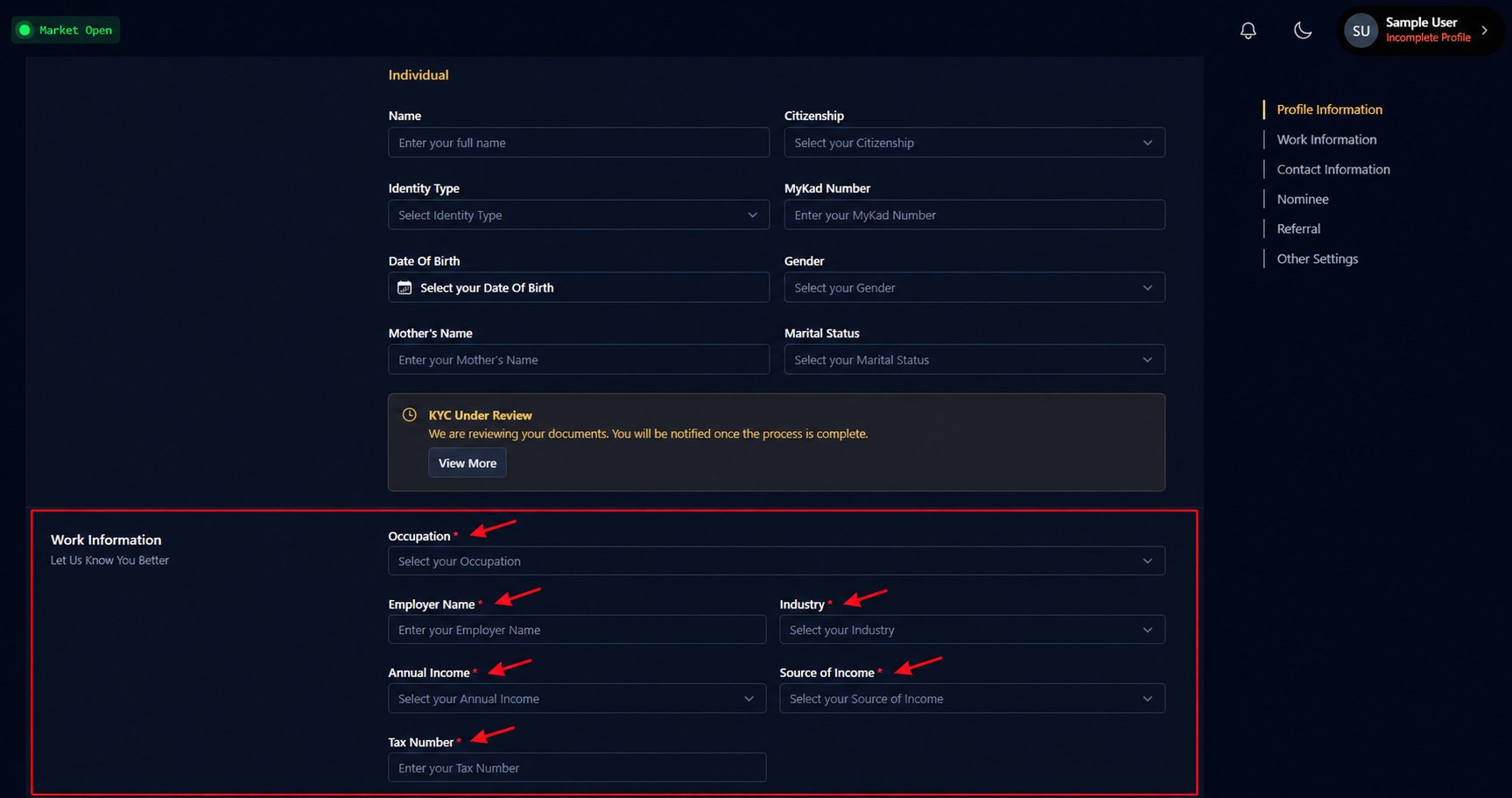
Fill in all required information throughout the profile.
All fields marked with a red asterisk (*) are mandatory and must be completed
Step 5: Complete the Nominee Section
In the Nominee section, choose one of the available options by toggle the button:
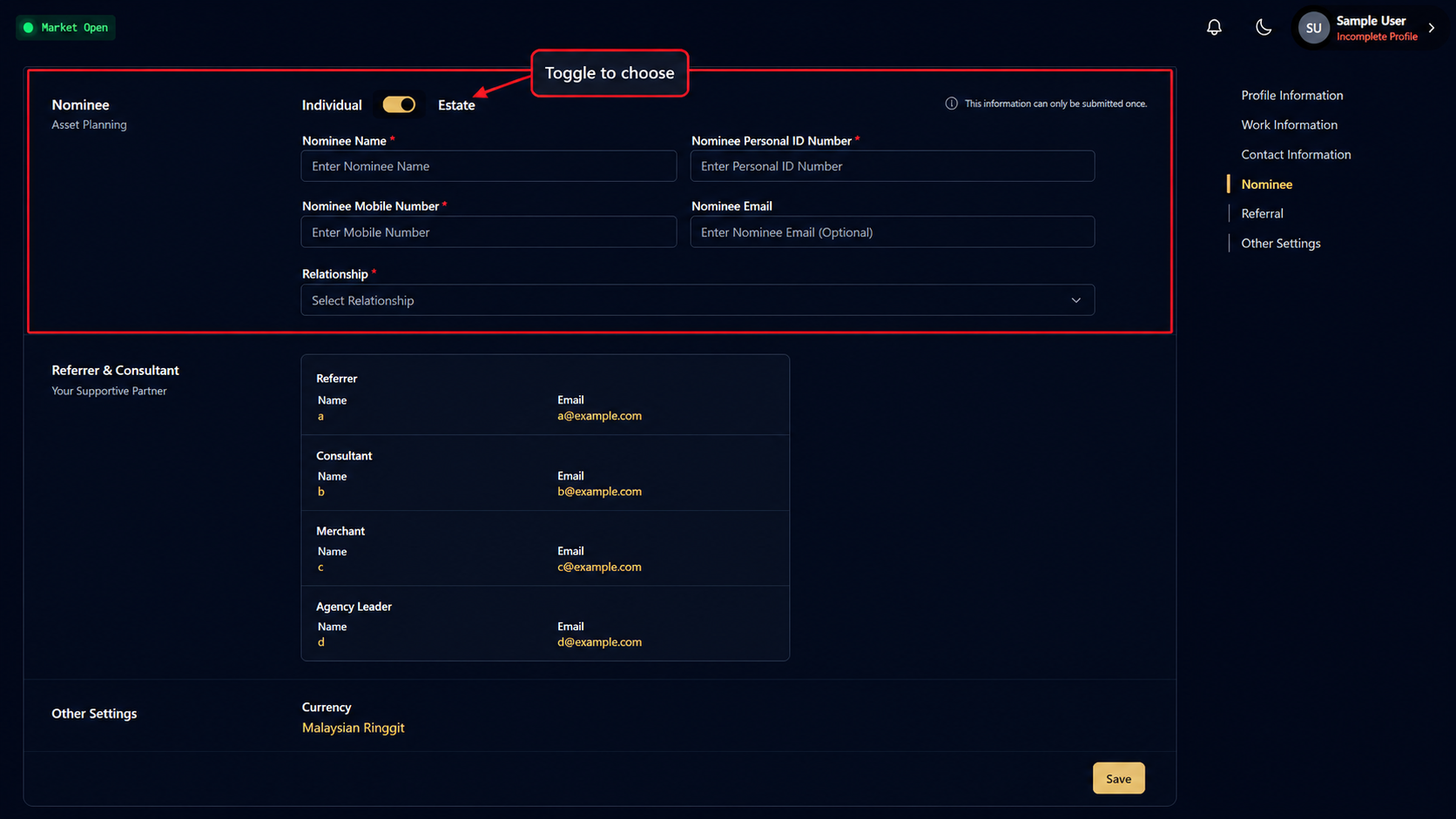
Individual
Select Individual if you wish to nominate a person.
Complete all required nominee information, including:
- Nominee Name
- Personal ID Number
- Mobile Number
- Email (optional if applicable)
- Relationship
Estate
Select Estate if you have a legally valid Will.
An Estate refers to a legal document (Will) that sets out your wishes regarding the distribution of your assets after your passing. If an Estate is declared, WDG will execute the distribution of your GOLD account assets according to the instructions stated in the Will.
After selecting your preferred option and completing the required information, click or tap Save.
Note: Nominee information can only be submitted once. Please ensure all details are correct before proceeding.
Step 6: Confirm Your Nominee Information
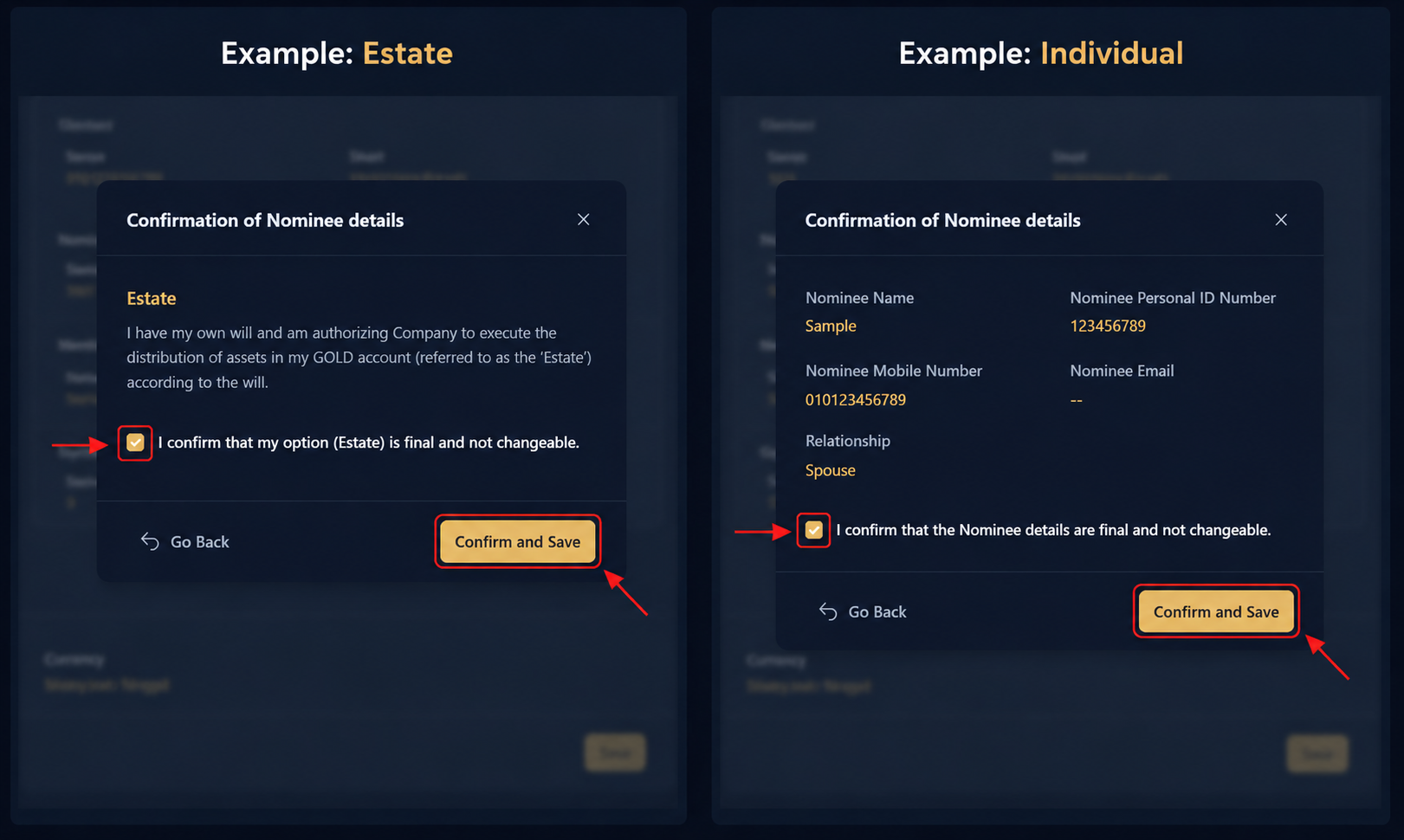
A confirmation window will appear.
Review the nominee information carefully.
- Tick the confirmation checkbox.
- Click Confirm and Save.
Once submitted successfully, your profile information will be saved.
Was this article helpful?
That’s Great!
Thank you for your feedback
Sorry! We couldn't be helpful
Thank you for your feedback
Feedback sent
We appreciate your effort and will try to fix the article