Complete your KYC verification by uploading your MyKad. Once your documents are approved, you will be able to access all available WDG account features.
Step 1: Access the Account Menu
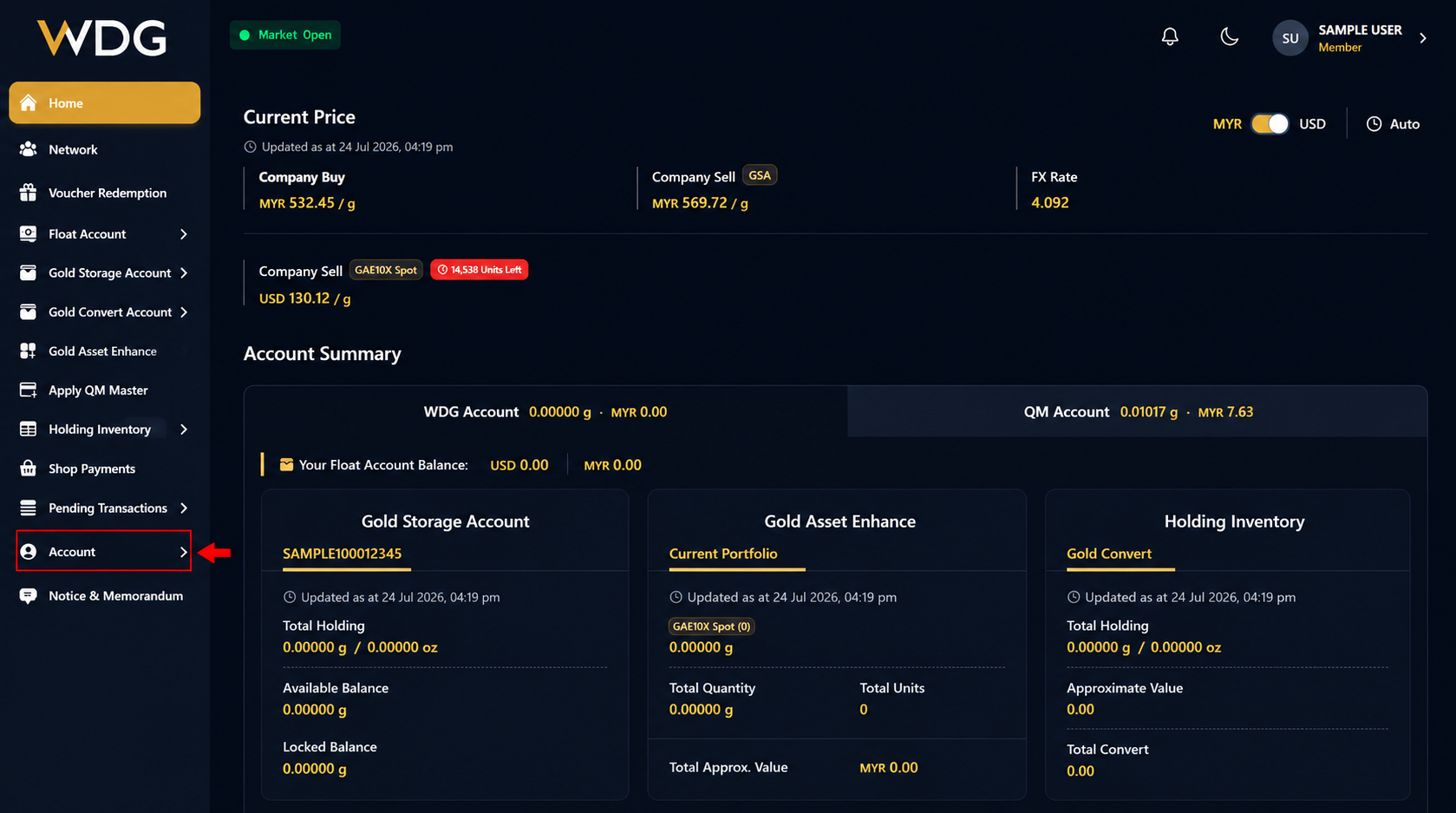
After logging in to your WDG account, locate the navigation menu on the left side of the Dashboard.
Click or tap Account to expand the menu options.
Step 2: Select Profile
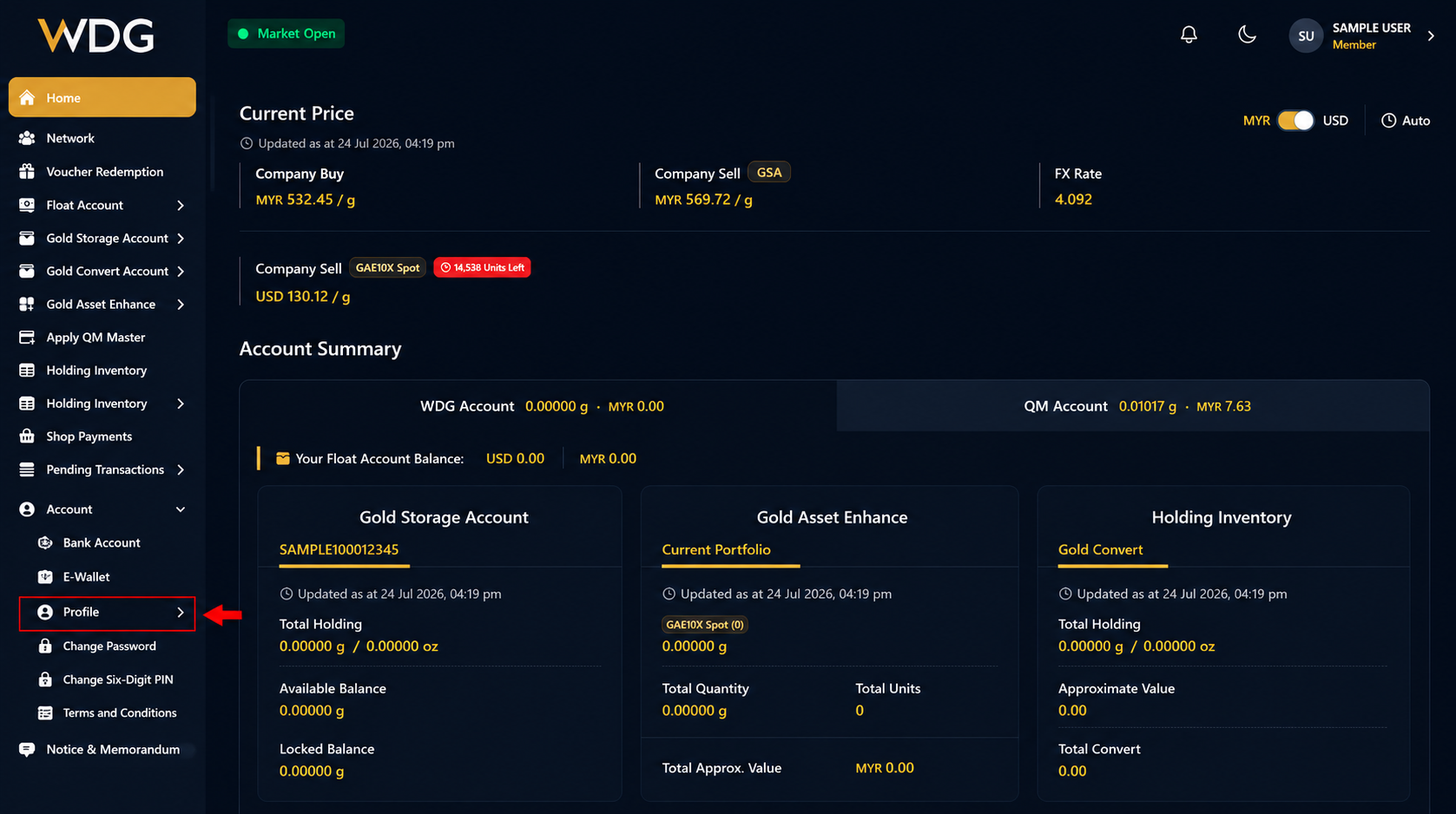
From the account menu, select Profile.
The Profile page displays your personal information and KYC status.
Step 3: Start Your KYC Verification
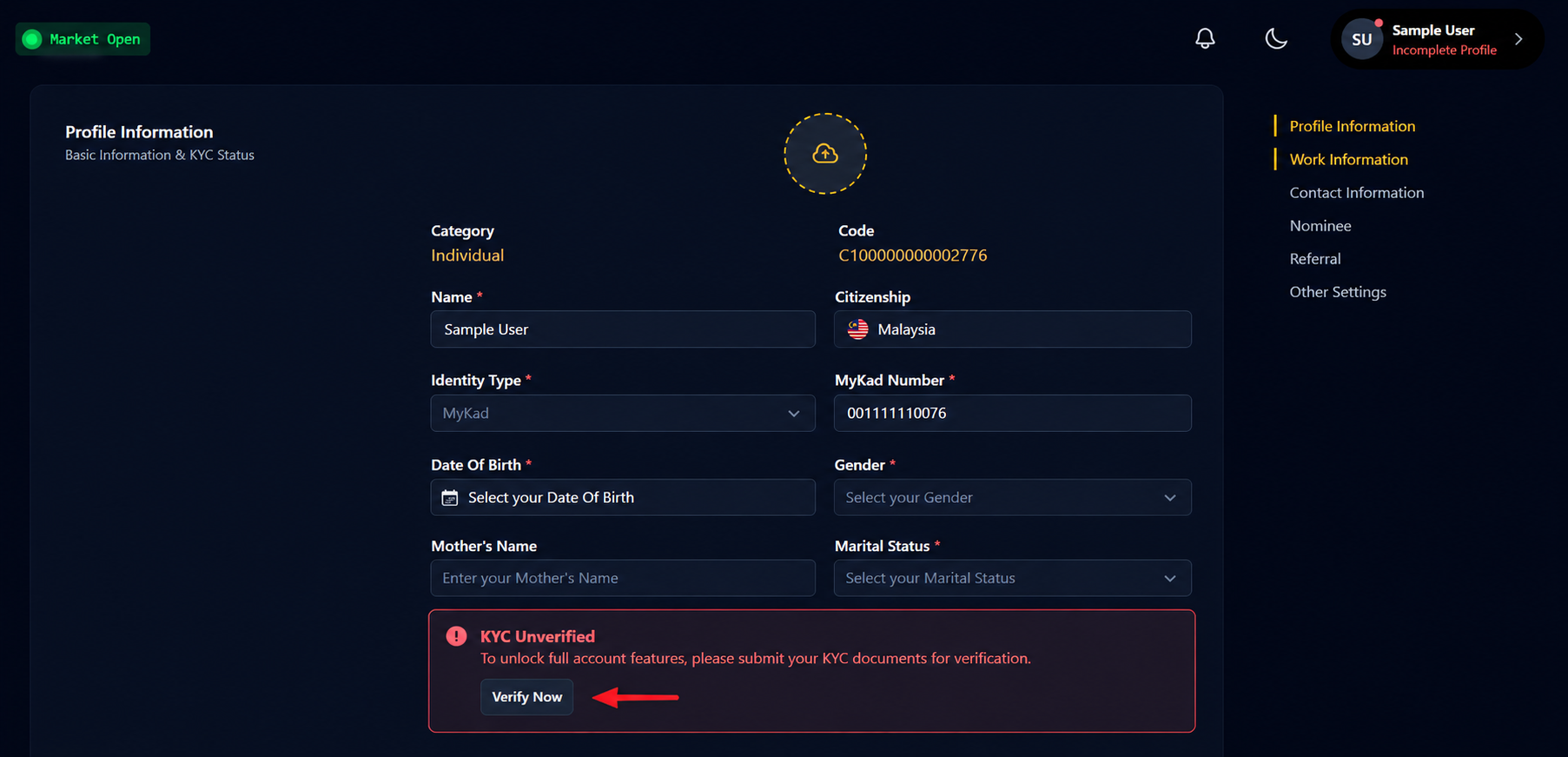
Under the Profile Information section, locate the KYC Unverified notification.
Tap or click Verify Now to begin your KYC verification.
Step 4: KYC Verification Page
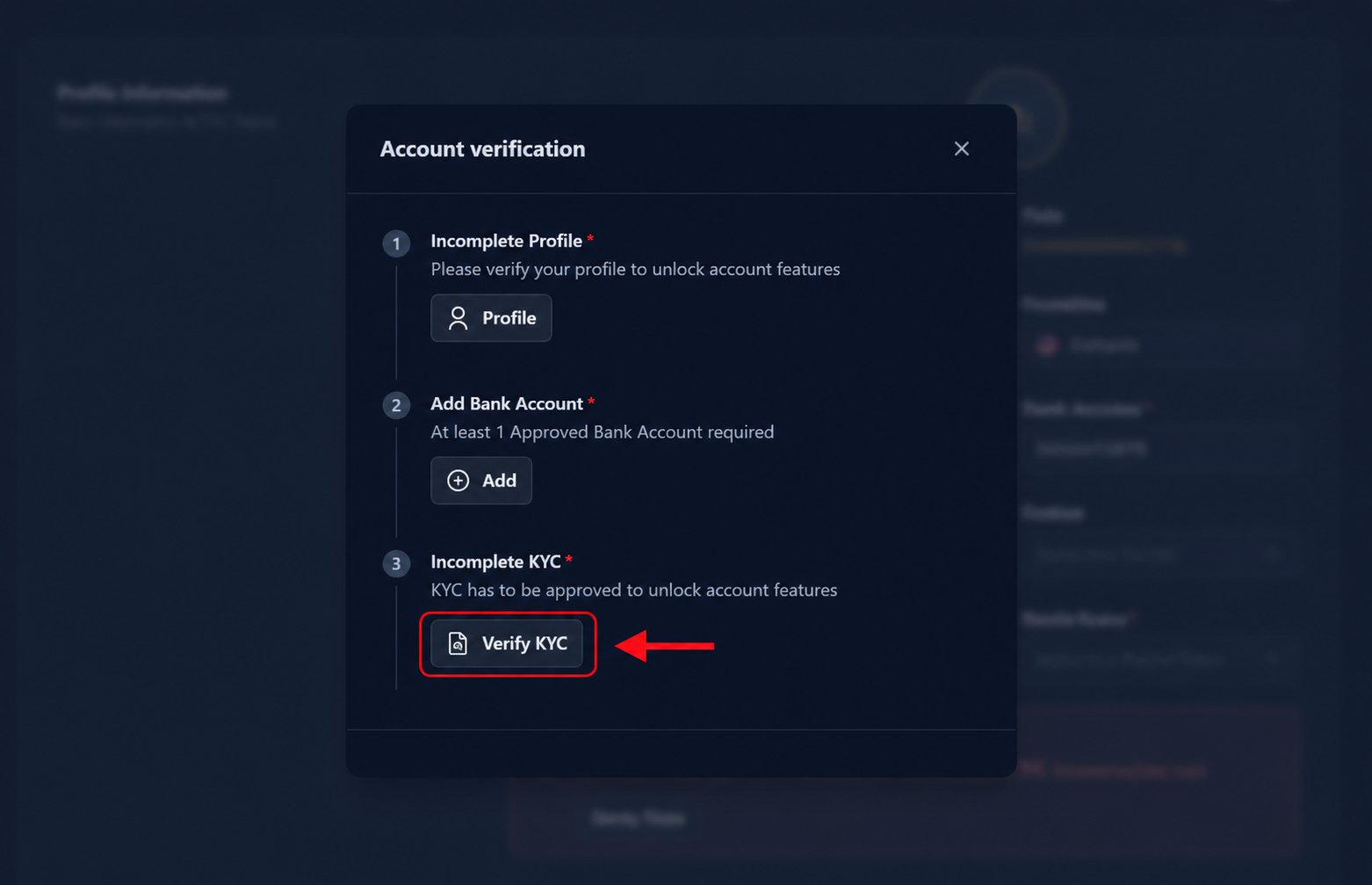
On the Account Verification page, tap or click Verify KYC.
This will open the KYC document upload page.
Step 5: Upload Your MyKad
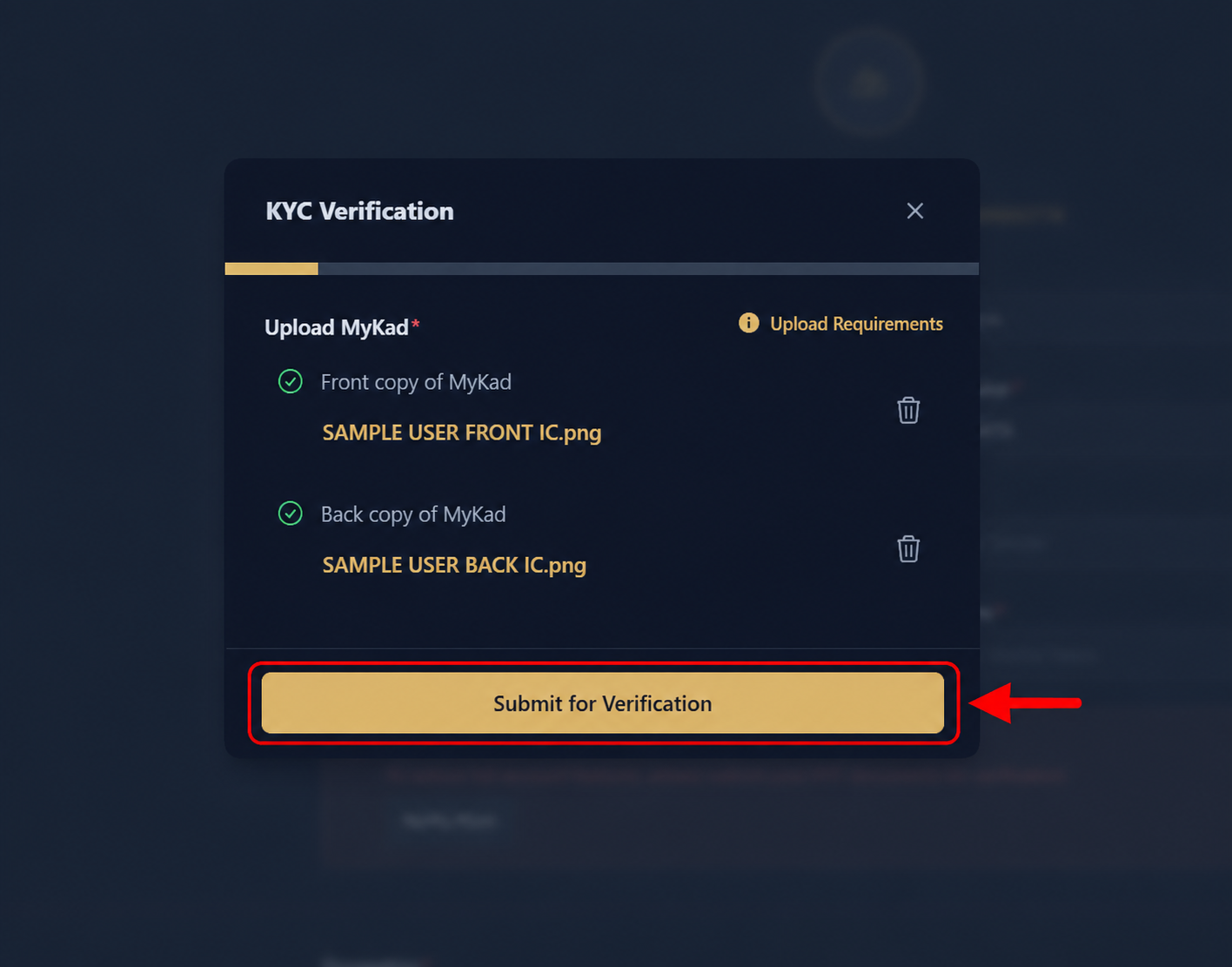
Upload your MyKad by following these steps:
- Tap or click the upper upload area to upload the front copy of your MyKad.
- Tap or click the lower upload area to upload the back copy of your MyKad.
- After both documents have been uploaded successfully, tap or click Submit for Verification.
Important: Ensure both images are clear, in full colour, and all information is fully visible before submitting.
Step 6: KYC Submitted Successfully
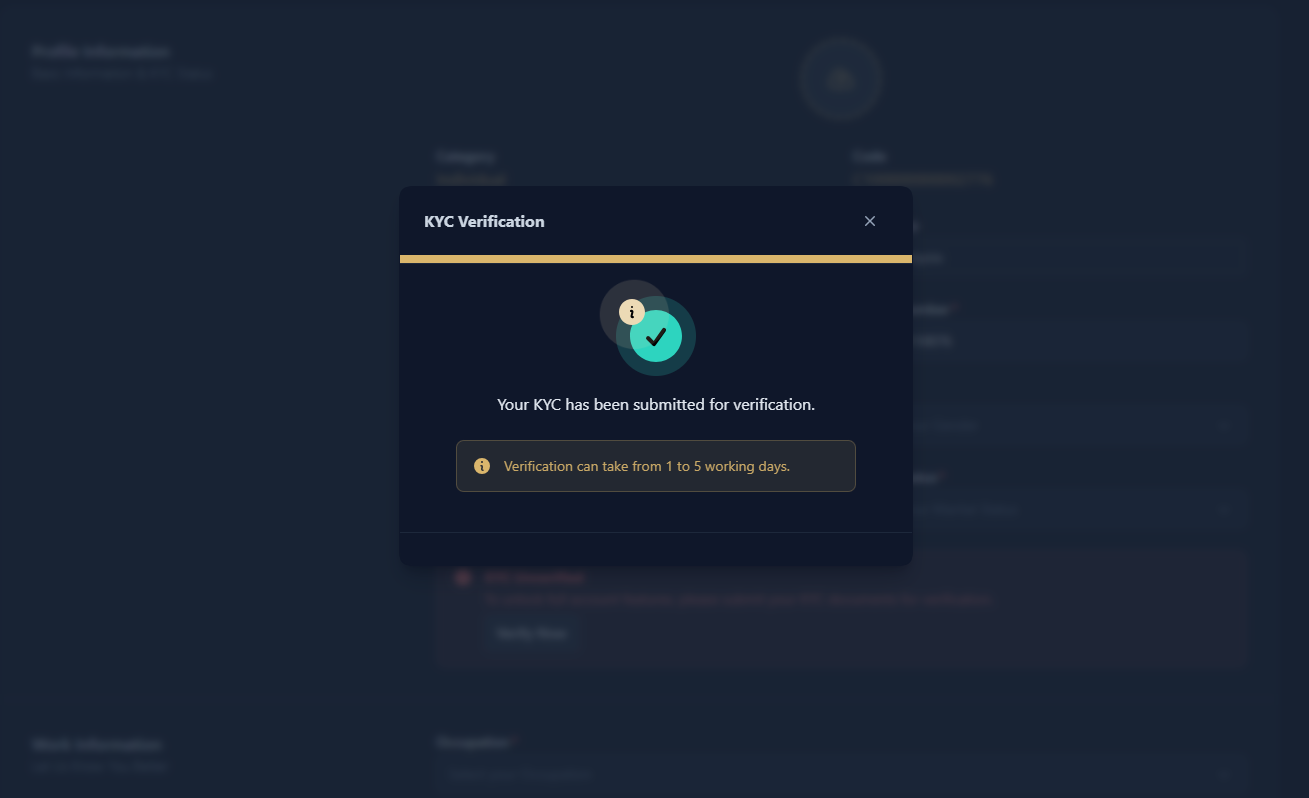
After your submission is completed, a confirmation message will be displayed indicating that your KYC documents have been successfully submitted for verification.
Was this article helpful?
That’s Great!
Thank you for your feedback
Sorry! We couldn't be helpful
Thank you for your feedback
Feedback sent
We appreciate your effort and will try to fix the article