To receive withdrawals and process eligible transactions in your WDG account, you must first add and verify your bank account.
Step 1: Access the Account Menu
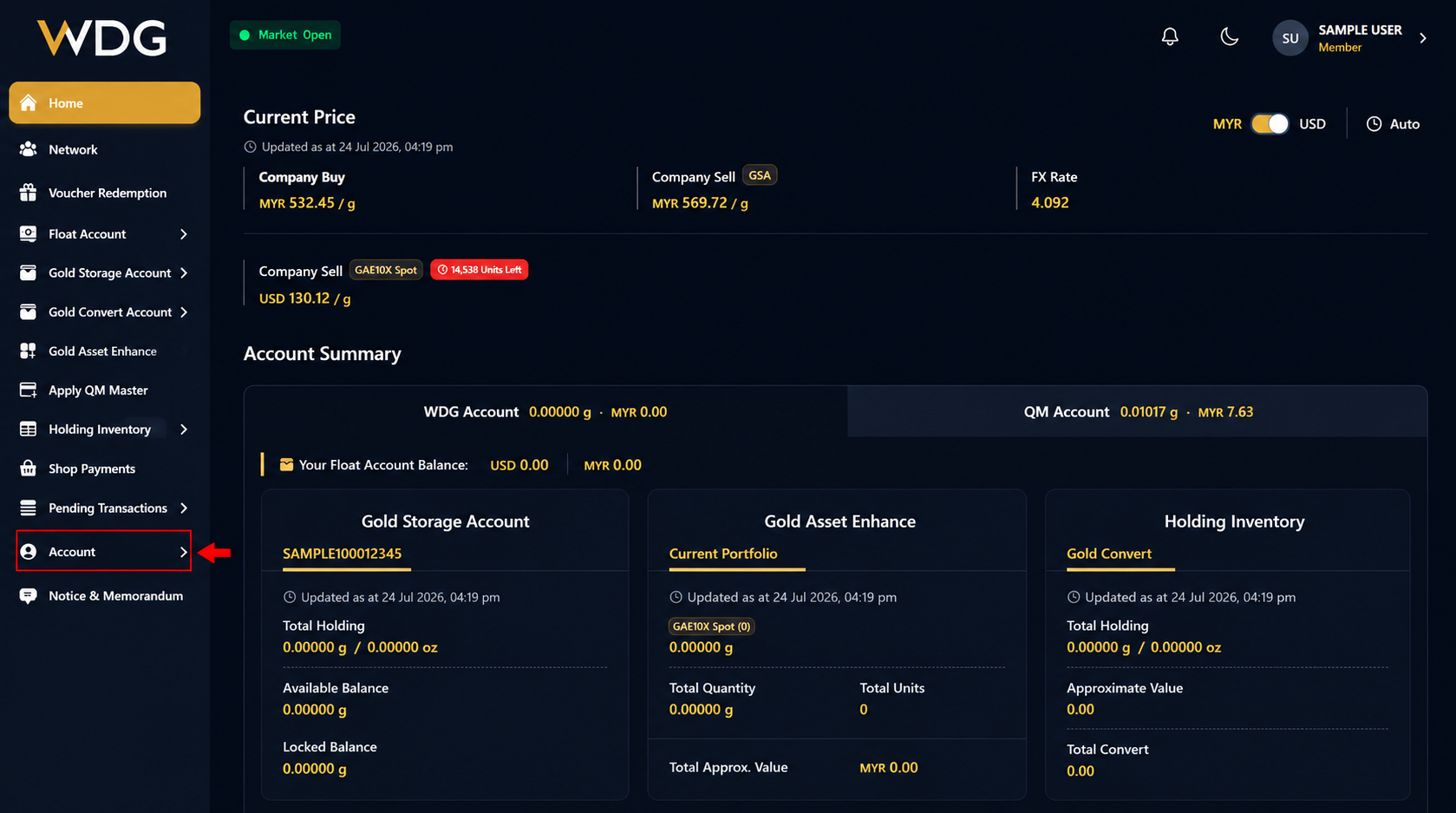
After logging in to your WDG account, locate the navigation menu on the left side of the Dashboard.
Click or tap Account to expand the menu options.
Step 2: Select Bank Account
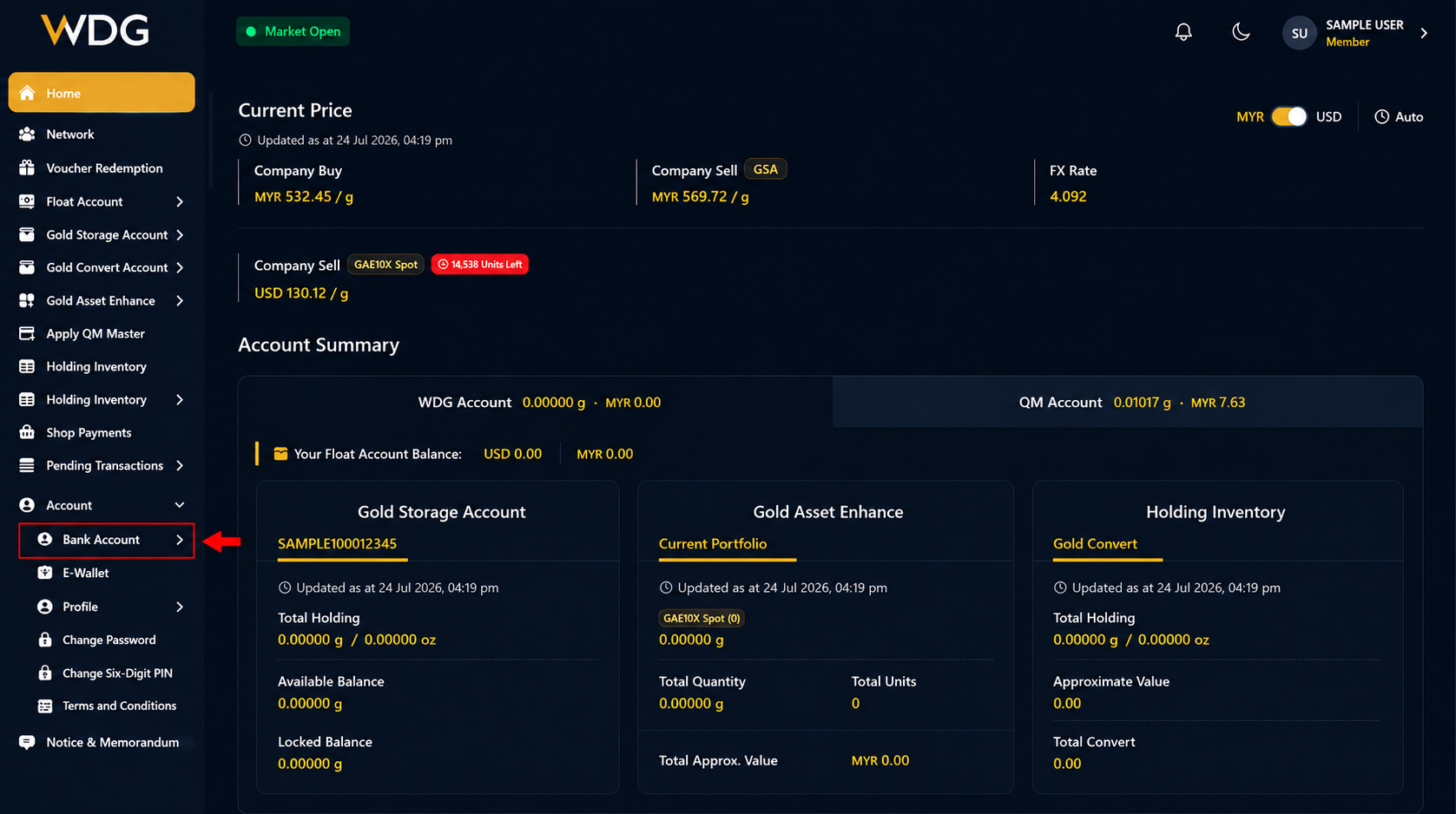
From the account menu, select Bank Account.
This page displays all bank accounts linked to your WDG account, together with their verification status.
Step 3: Click Add
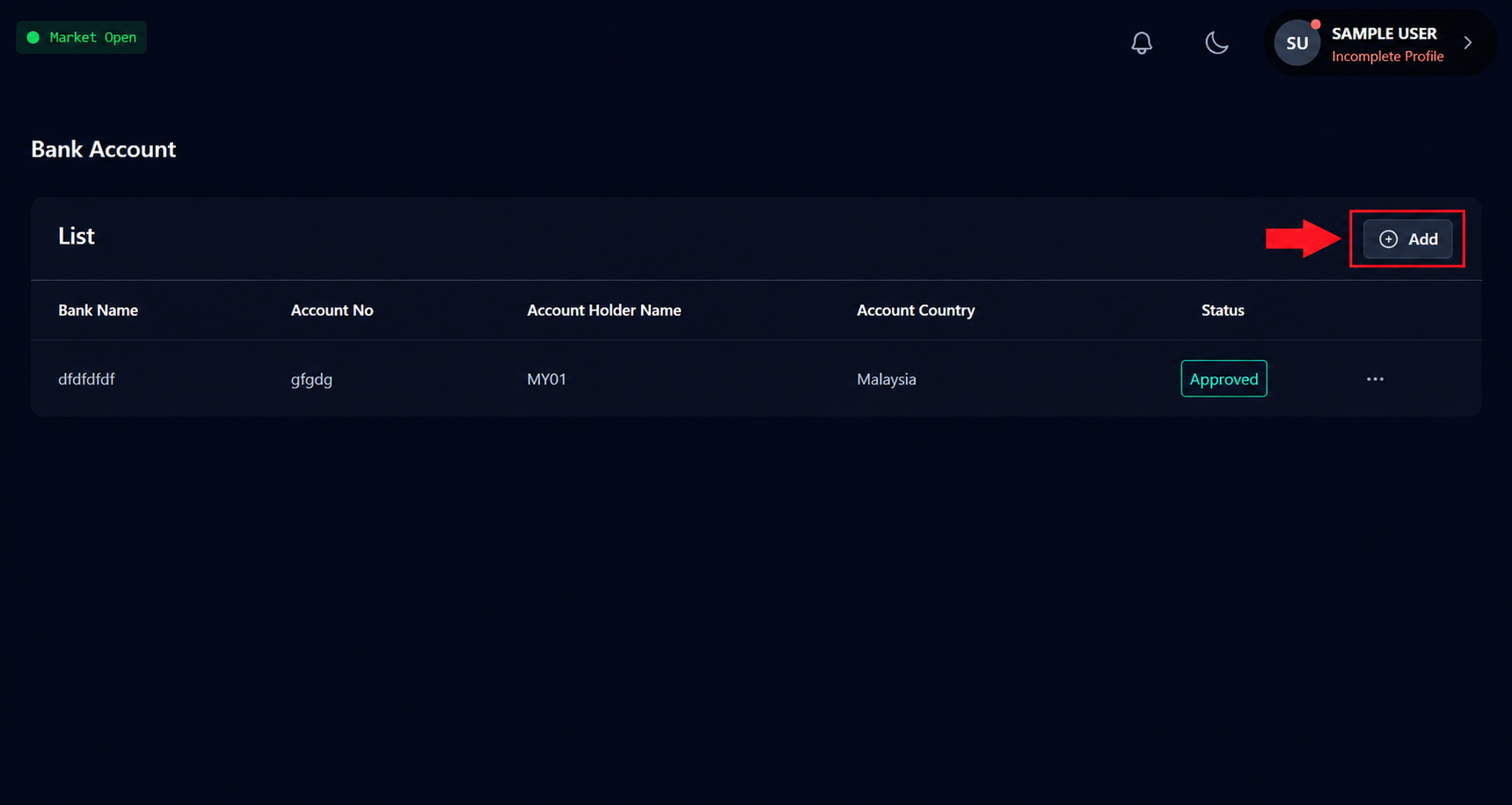
On the Bank Account page, click or tap the Add button.
This will open the Add Bank Account form.
Step 4: Enter Your Bank Details
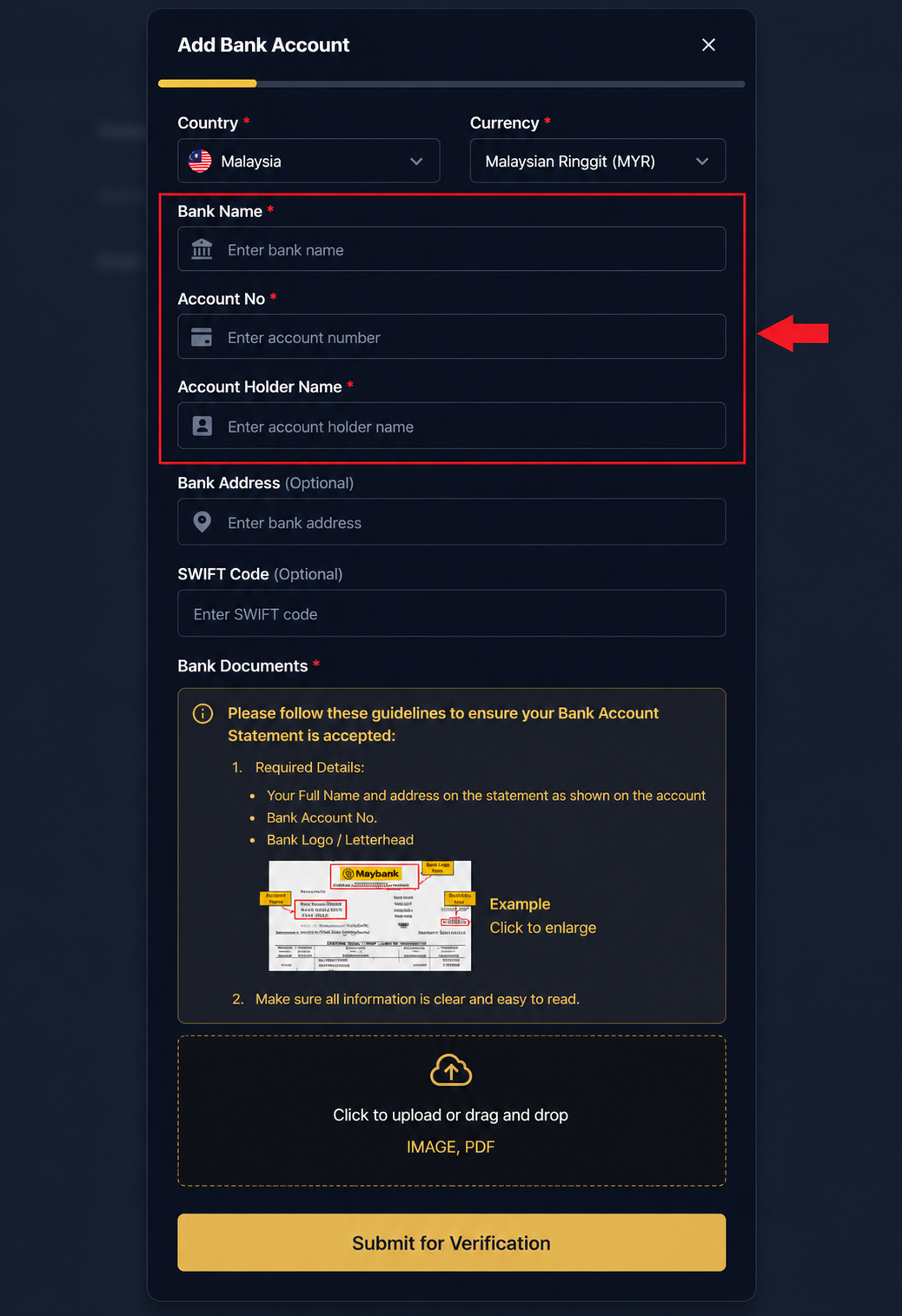
Complete the required information:
- Bank Name
- Account Number
- Account Holder Name
Optional fields:
- Bank Address
- SWIFT Code
Important: The Account Holder Name must exactly match the name registered with your bank.
Note: When entering your Account Number, do not include hyphens (-) or spaces. Enter the account number as a continuous string of numbers (for example: 789456123, not 789-456-123 or 789 456 123).
Step 5: Upload Your Supporting Document
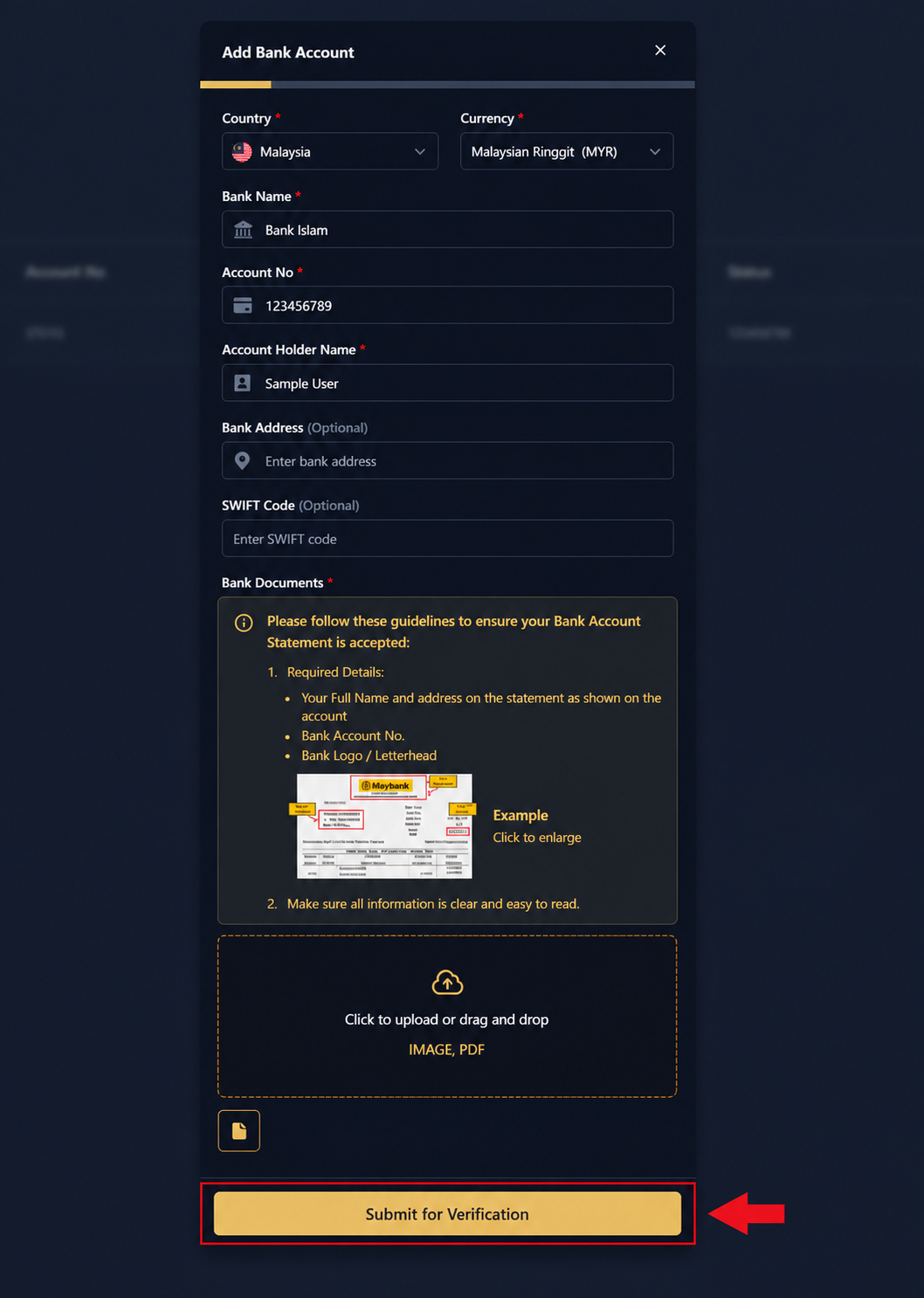
Upload a valid bank statement or bank confirmation document that clearly shows:
- Bank logo or letterhead
- Account holder name
- Bank account number
Once uploaded, click or tap Submit for Verification.
Tip: Ensure the document is clear, complete, and easy to read. Blurry, cropped, or incomplete documents may delay verification.
Step 6: Verification Submitted
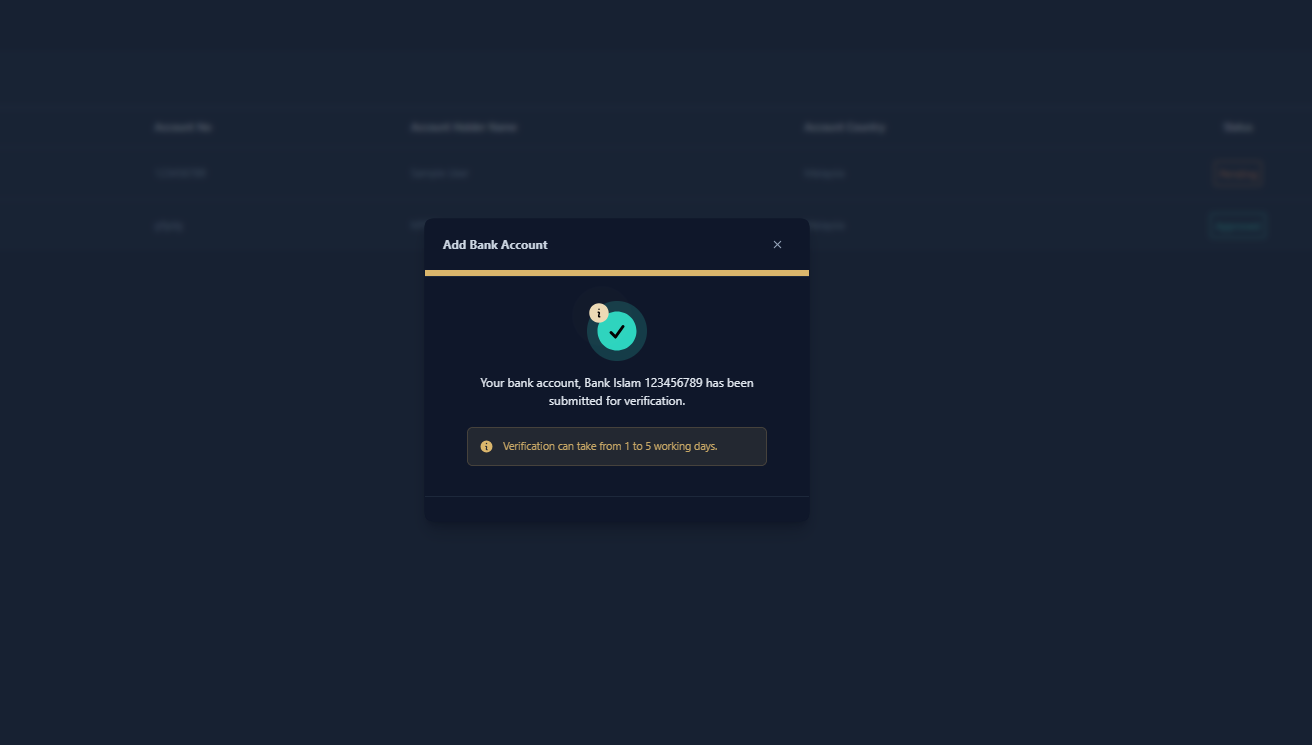
After submission, a confirmation message will appear indicating that your bank account has been successfully submitted for verification.
Bank account verification typically takes 1–5 working days.
Step 7: Bank Account Approved
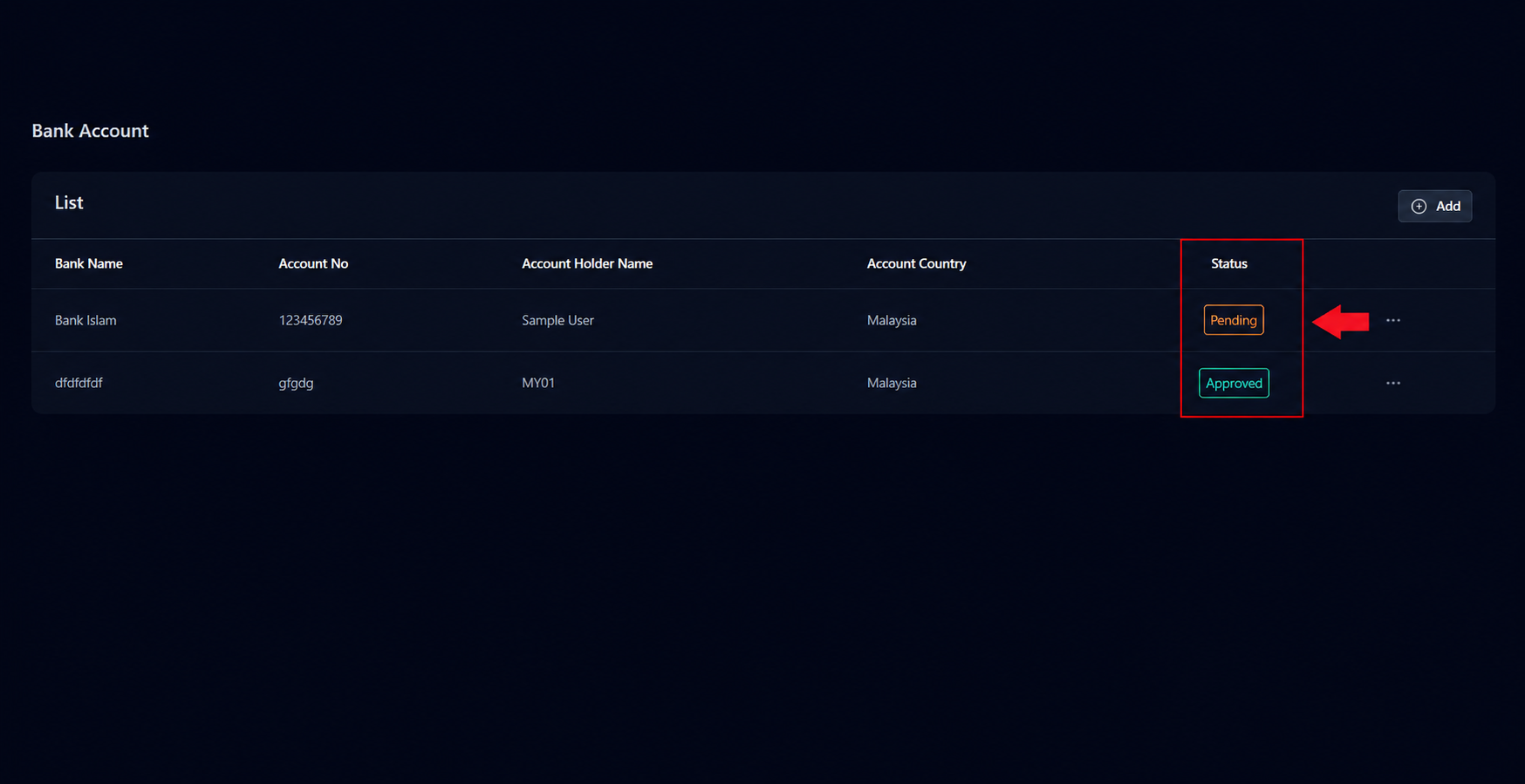
Once your bank account has been reviewed and approved, return to the Bank Account page.
The status will change from: Pending ➜ Approved
Your verified bank account is now ready to be used for eligible WDG transactions.
Was this article helpful?
That’s Great!
Thank you for your feedback
Sorry! We couldn't be helpful
Thank you for your feedback
Feedback sent
We appreciate your effort and will try to fix the article