If you no longer use a bank account or wish to remove it from your WDG account, you can delete it from the Bank Account page.
Step 1: Access the Account Menu
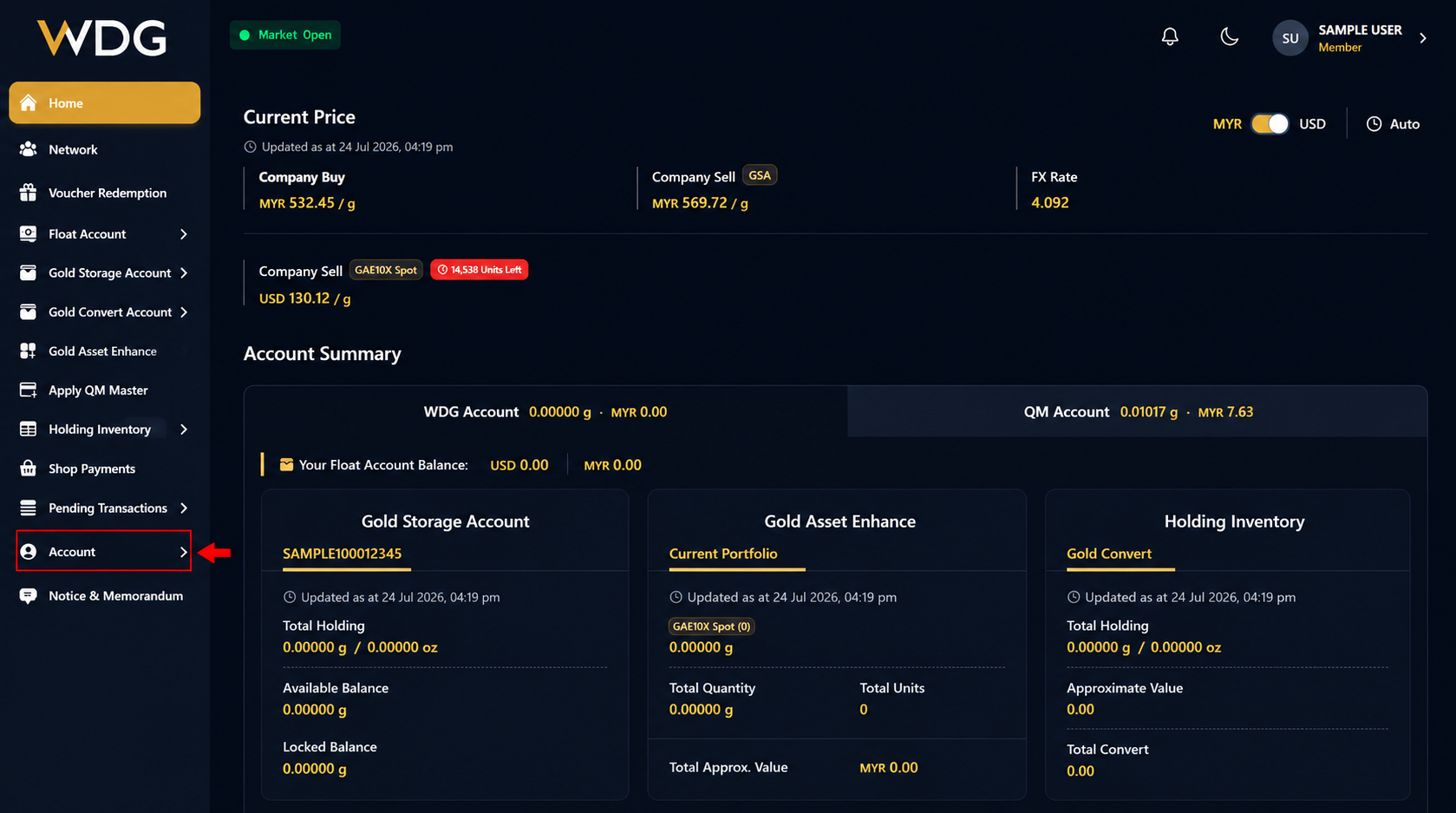
After logging in to your WDG account, locate the navigation menu on the left side of the Dashboard.
Click or tap Account to expand the menu options.
Step 2: Select Bank Account
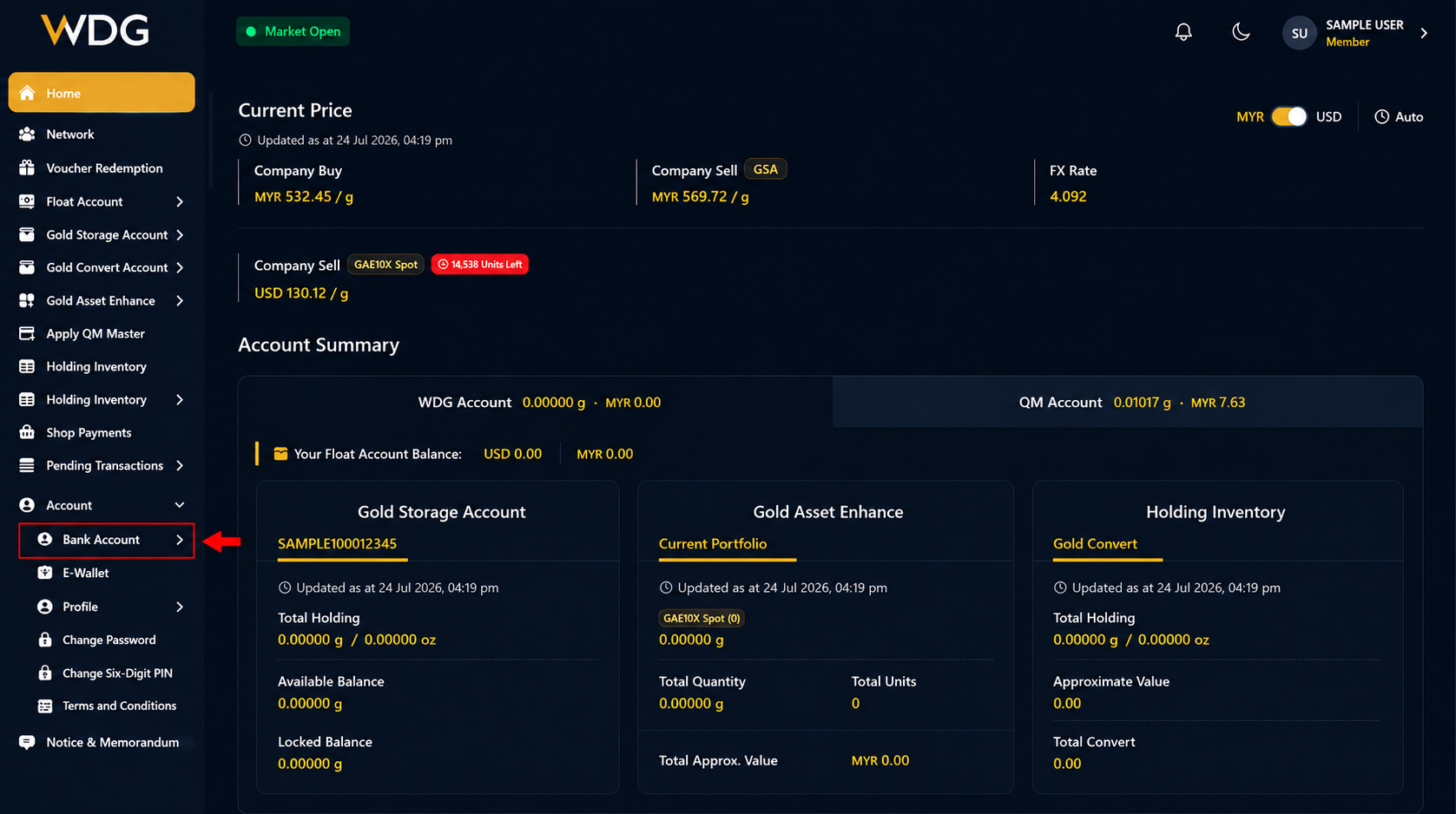
From the account menu, select Bank Account.
This page displays all bank accounts linked to your WDG account.
Step 3: Open the Options Menu
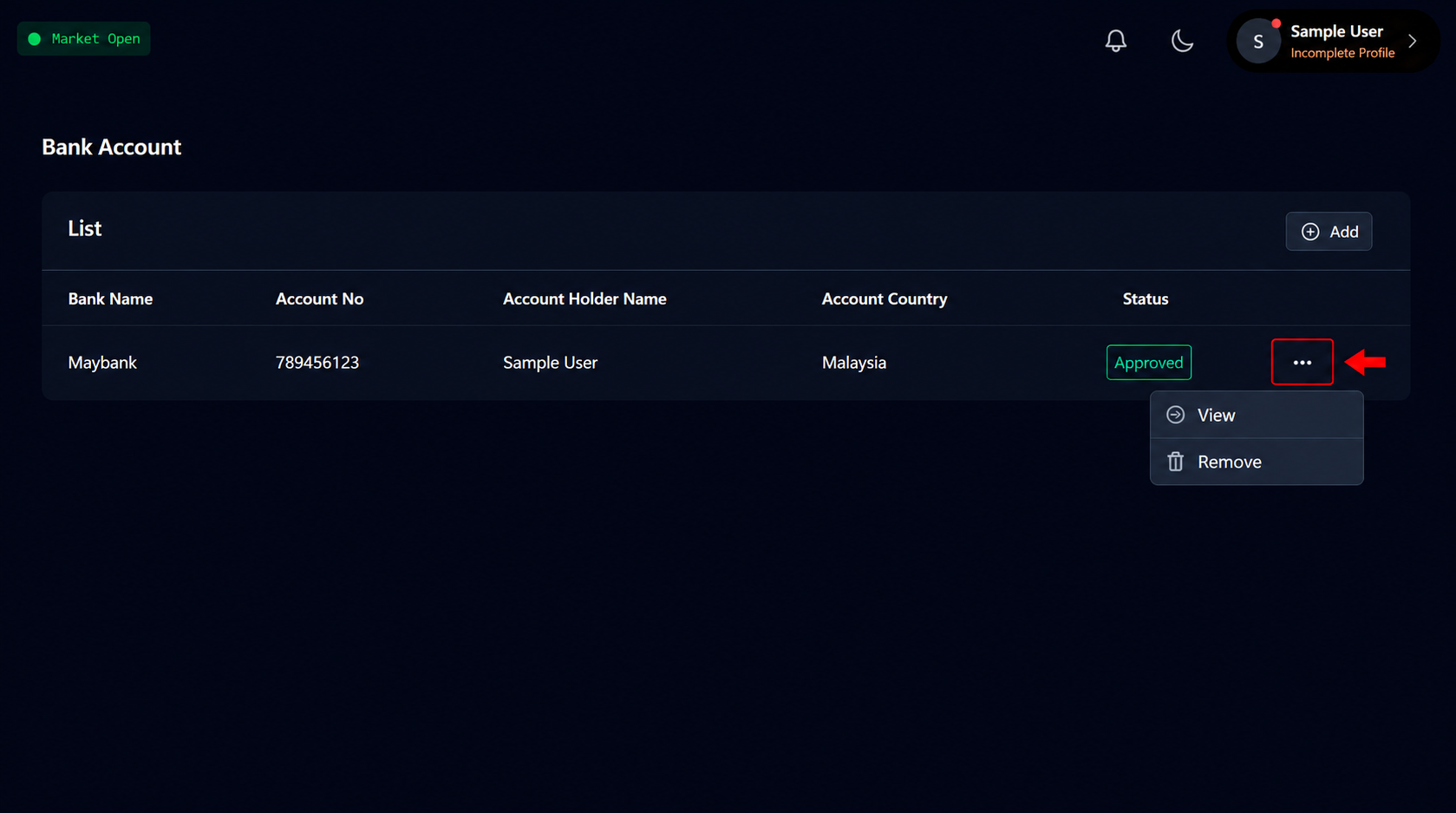
Locate the bank account you wish to remove.
Click or tap the three-dot (•••) menu beside the selected bank account to display the available actions.
You can choose to:
- View – View the bank account details.
- Remove – Delete the bank account.
Step 4: Select Remove
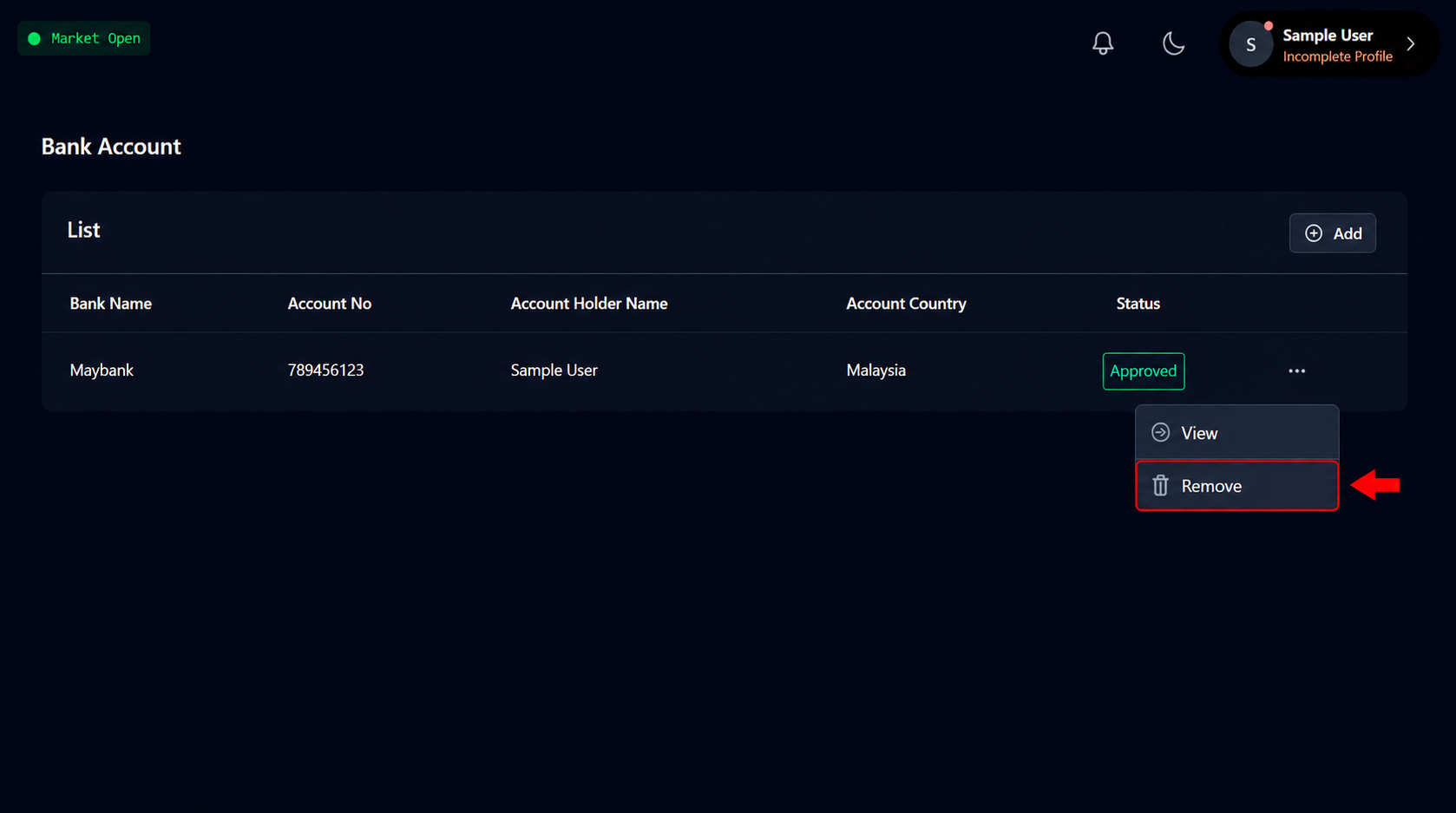
From the options menu, click or tap Remove.
A confirmation window will appear displaying the selected bank account information.
Step 5: Enter a Removal Reason
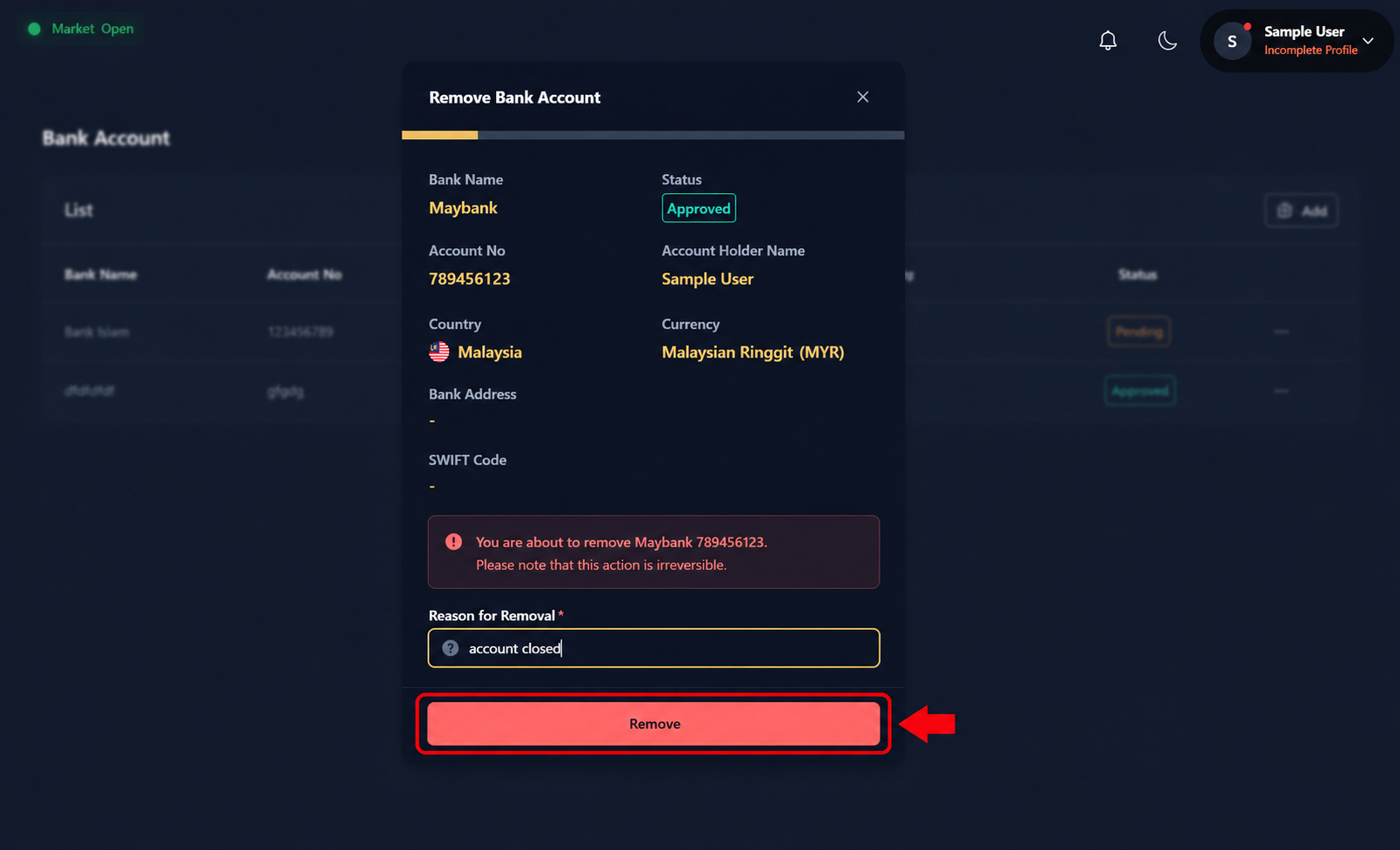
Before the bank account can be removed:
- Enter the Reason for Removal.
- Review the warning message carefully.
- Click or tap the Remove button to confirm.
Step 6: Bank Account Successfully Removed
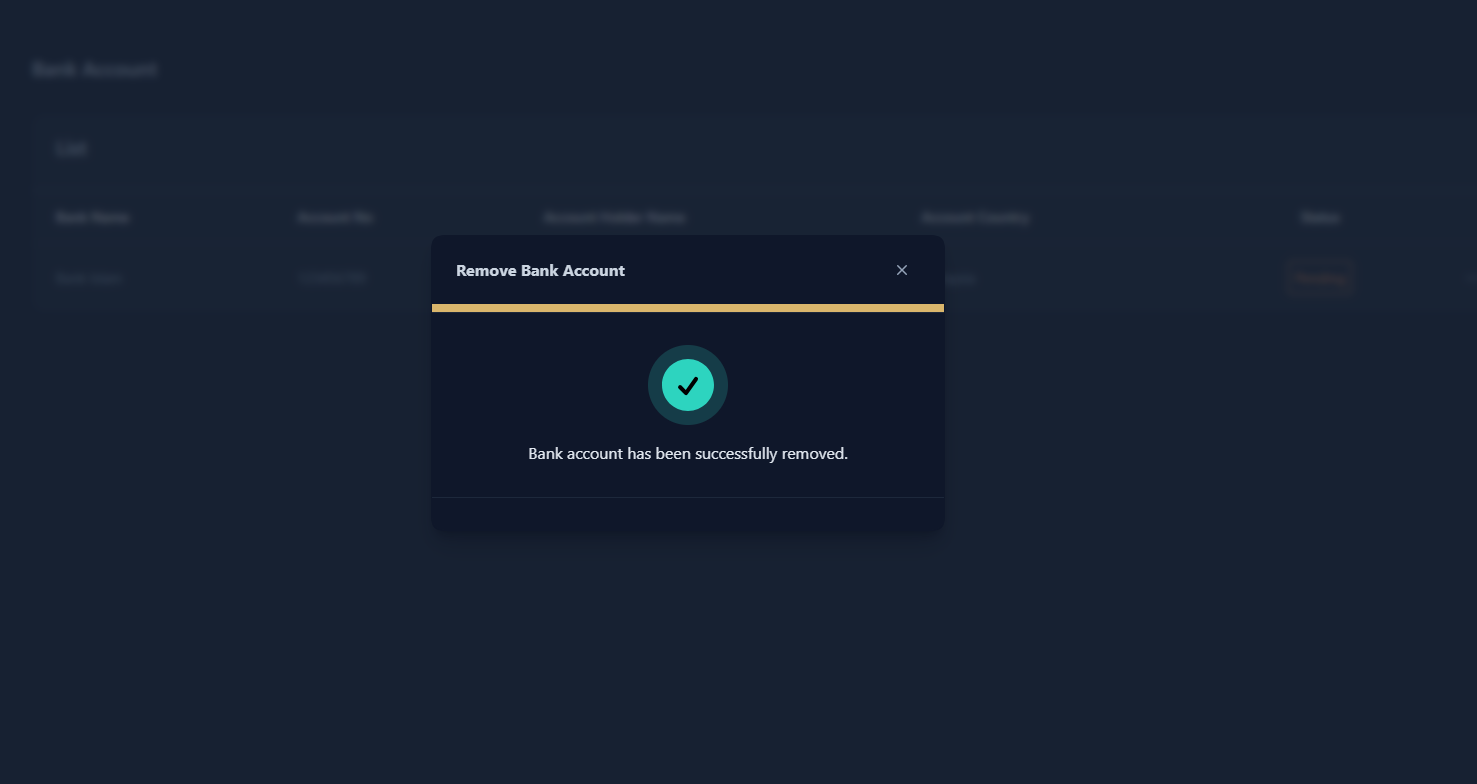
Once the removal is completed successfully, a confirmation message will be displayed.
The selected bank account will no longer appear in your Bank Account list.
Was this article helpful?
That’s Great!
Thank you for your feedback
Sorry! We couldn't be helpful
Thank you for your feedback
Feedback sent
We appreciate your effort and will try to fix the article